
I. Purpose
Restaurant managers can record complimentary items (On the house) for employees, ensuring that:
- They are not recorded as revenue
- They do not affect financial reports
- All actions are still controlled and tracked within the system
II. Instruction steps
a. Set up the manager’s confirmation.
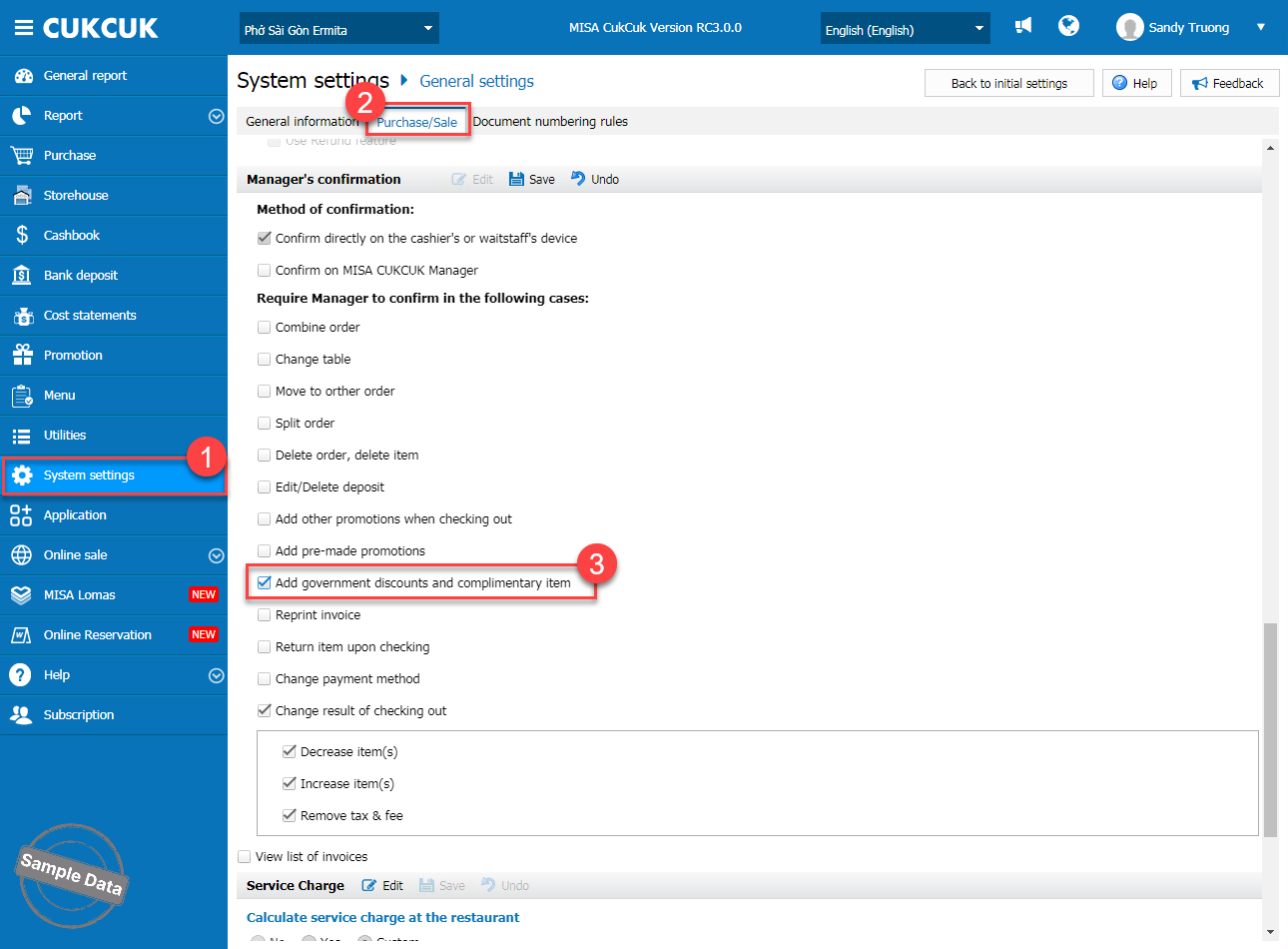
On the dashboard, go to System settings/General settings. On Purchase/Sale tab, scroll down to Manager’s confirmation part and click Edit. Check Add government discounts and complimentary item. Then, click Save.
b. Update the existing role to mark complimentary item
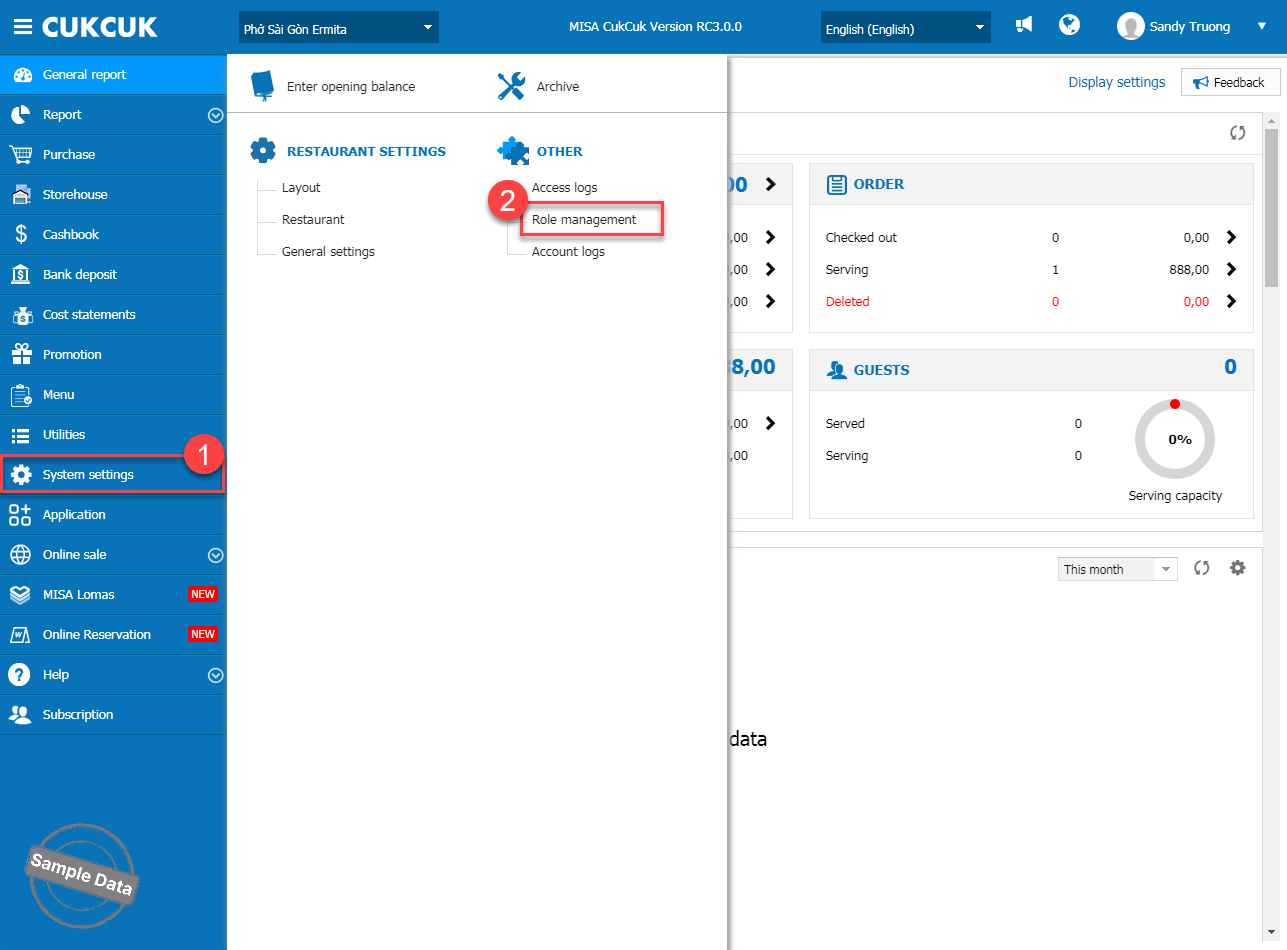
Go to System settings and select Role management.
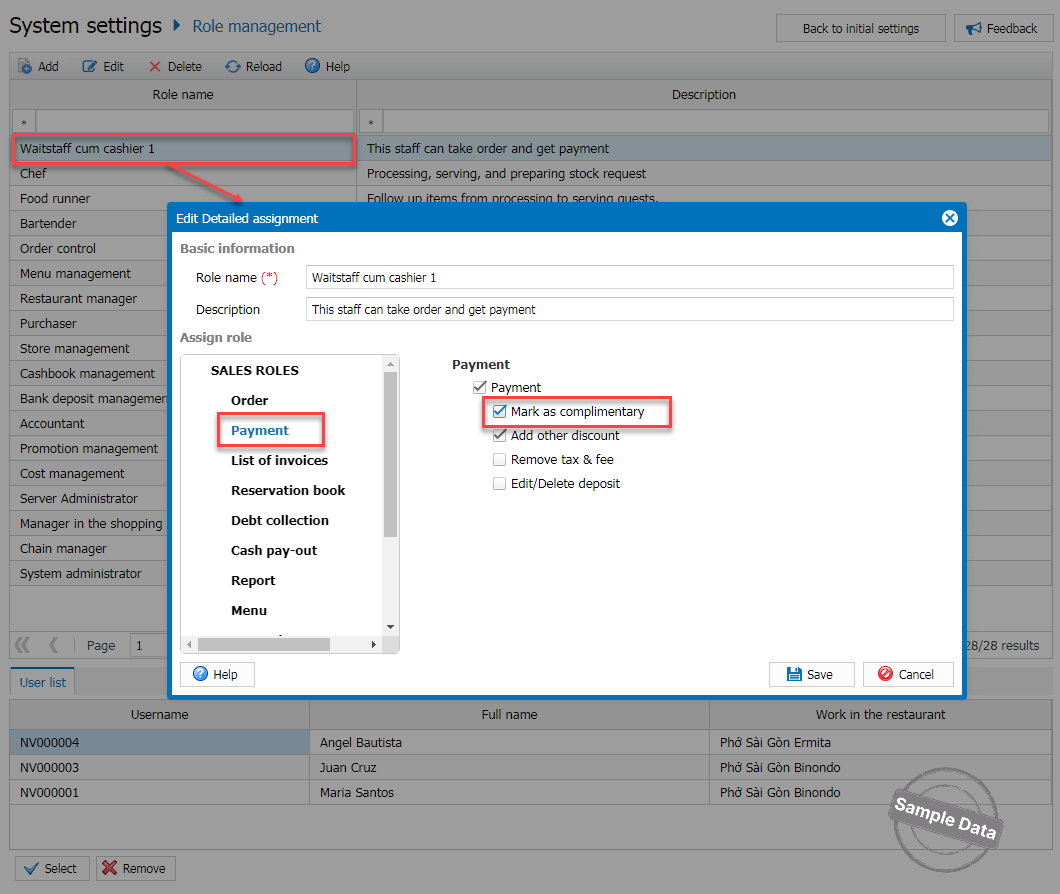
Double click a role you want to assign. Select Payment and check Mark as complimentary. Then, click Save.
c. Assign staff to mark complimentary item
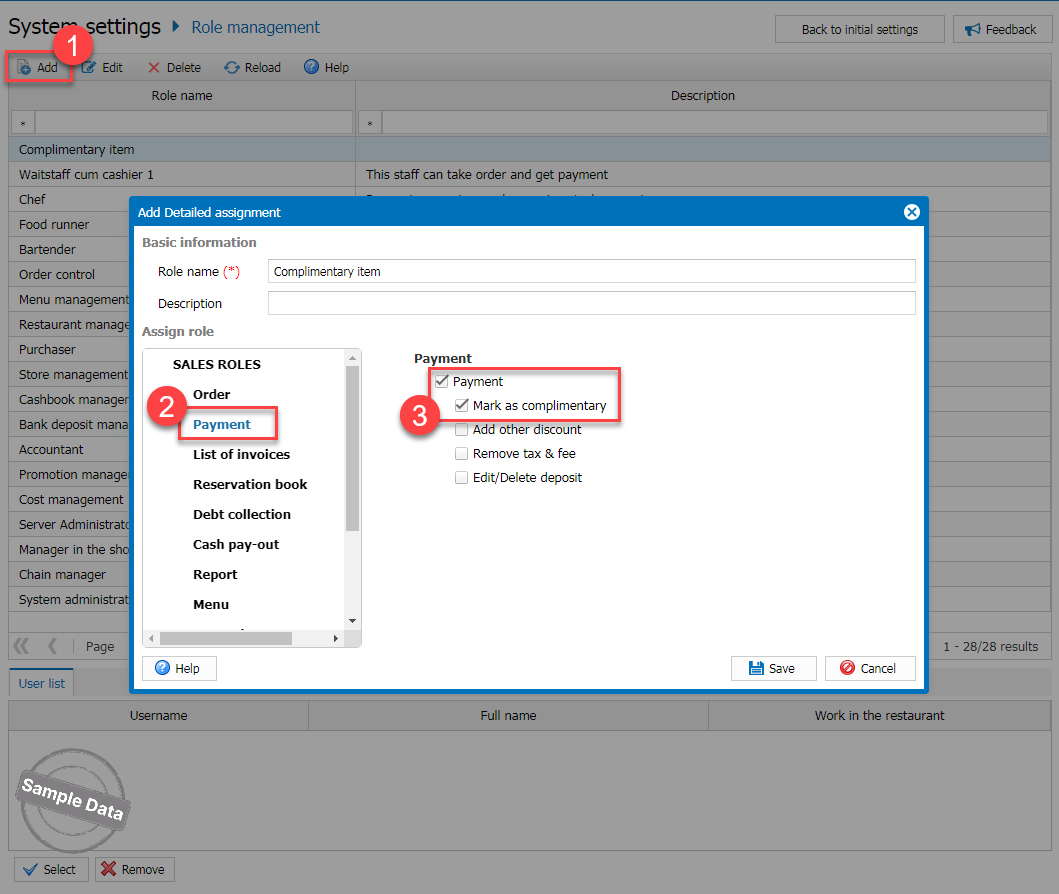
Click Add and create a role name. Select Payment tab and check Mark as complimentary. Click Save.
Click Select to assign the staff this role. Then, click Select.
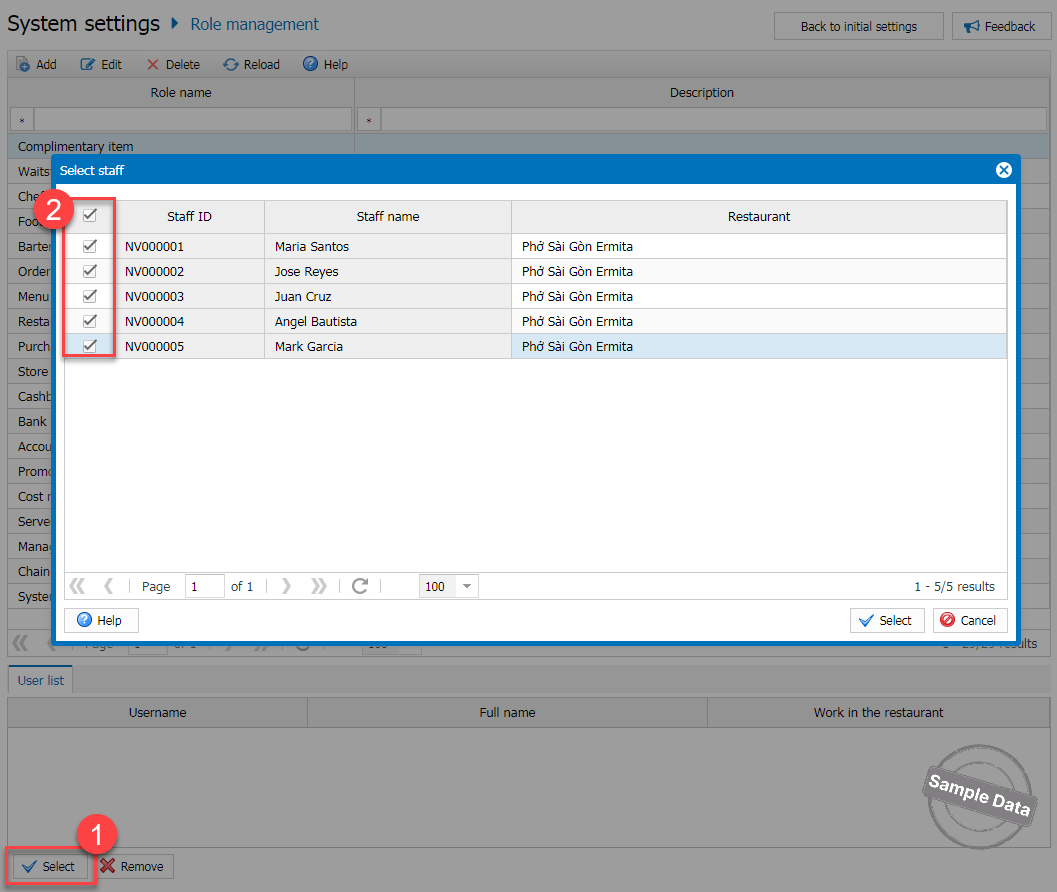
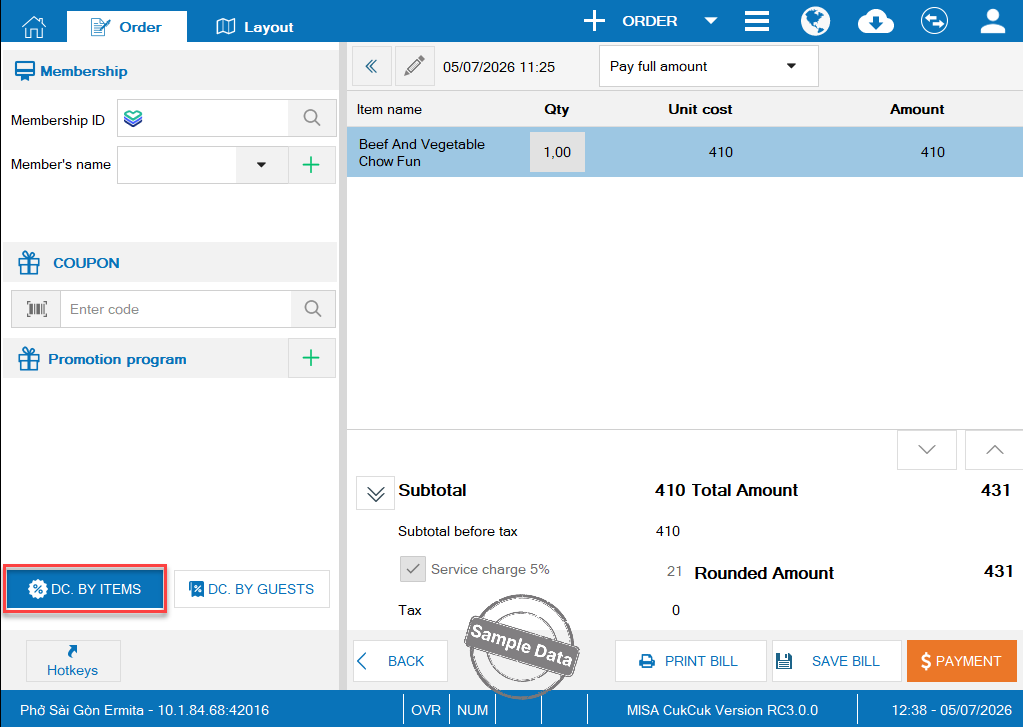
On POS upon checking out, click DC. by items.
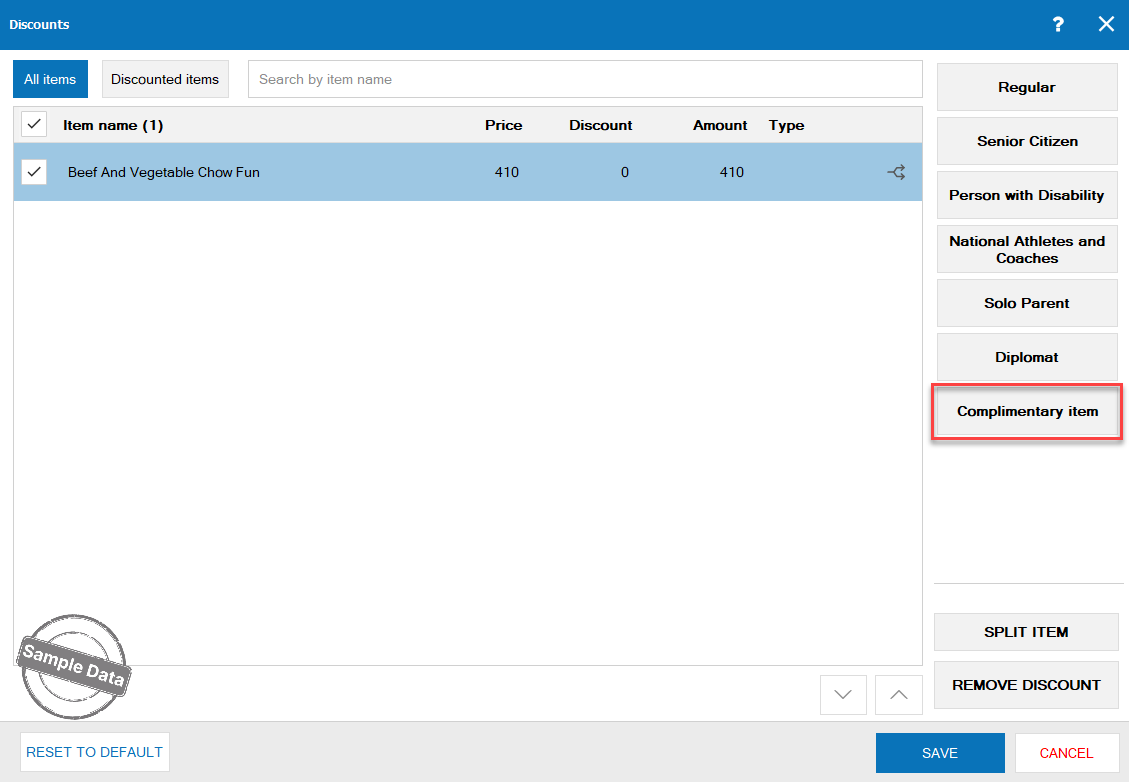
Select item and click Complimentary item.
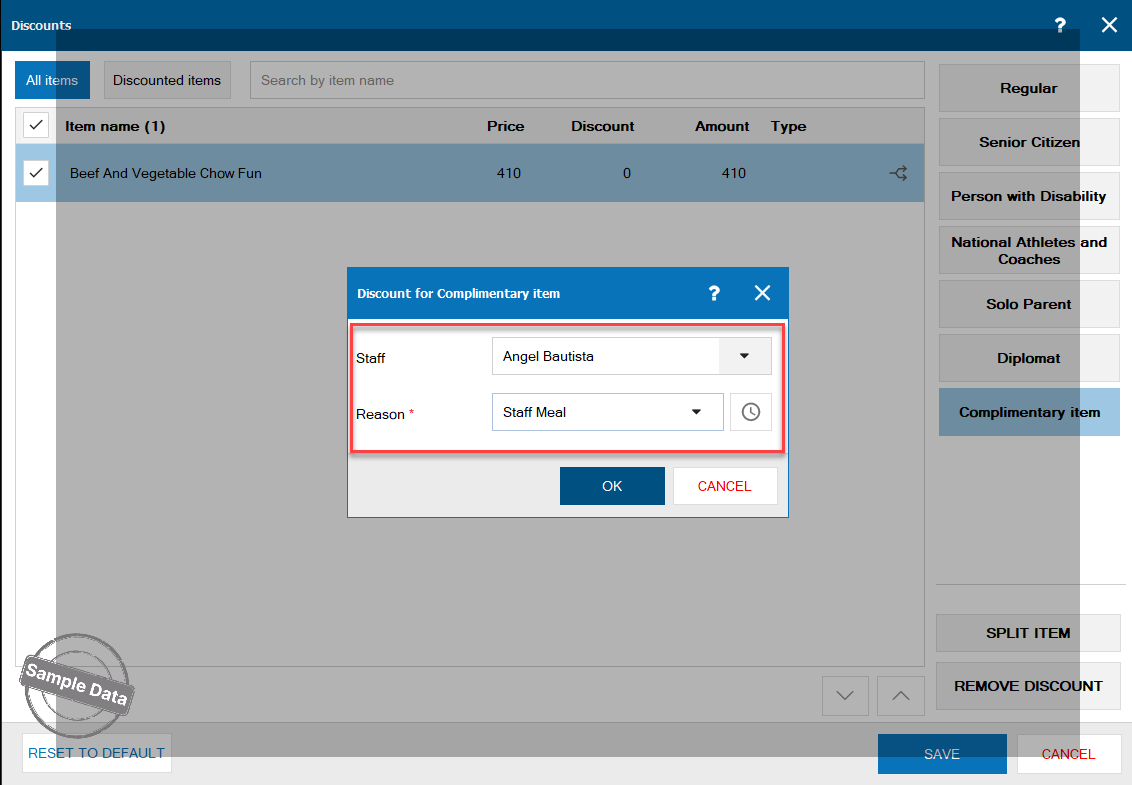
Select staff and reason. Then, click OK.
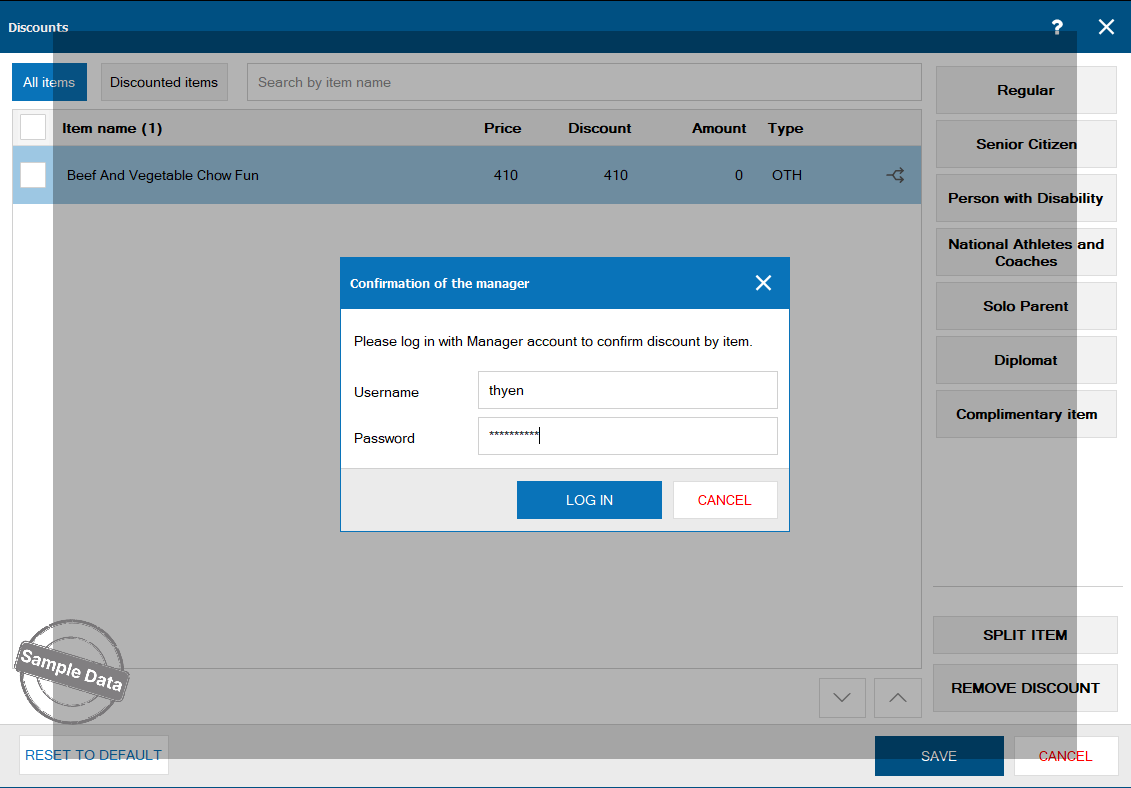
Upon clicking Save, the manager’s confirmation is needed. Enter the manager’s information and click Log in.
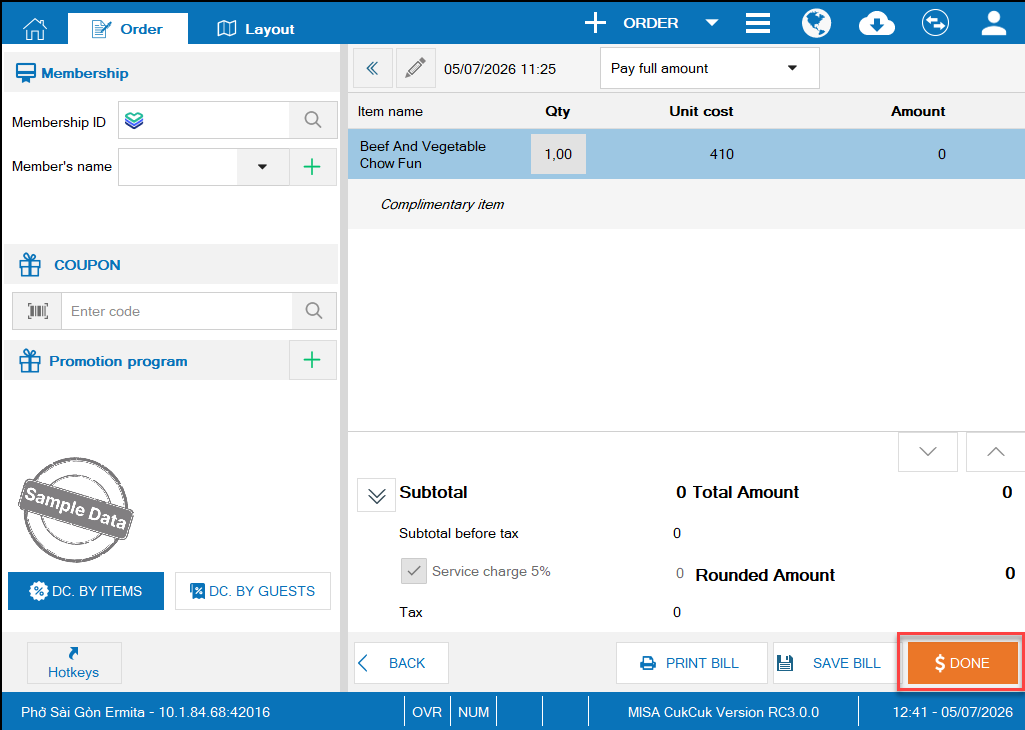
Then, click Done.
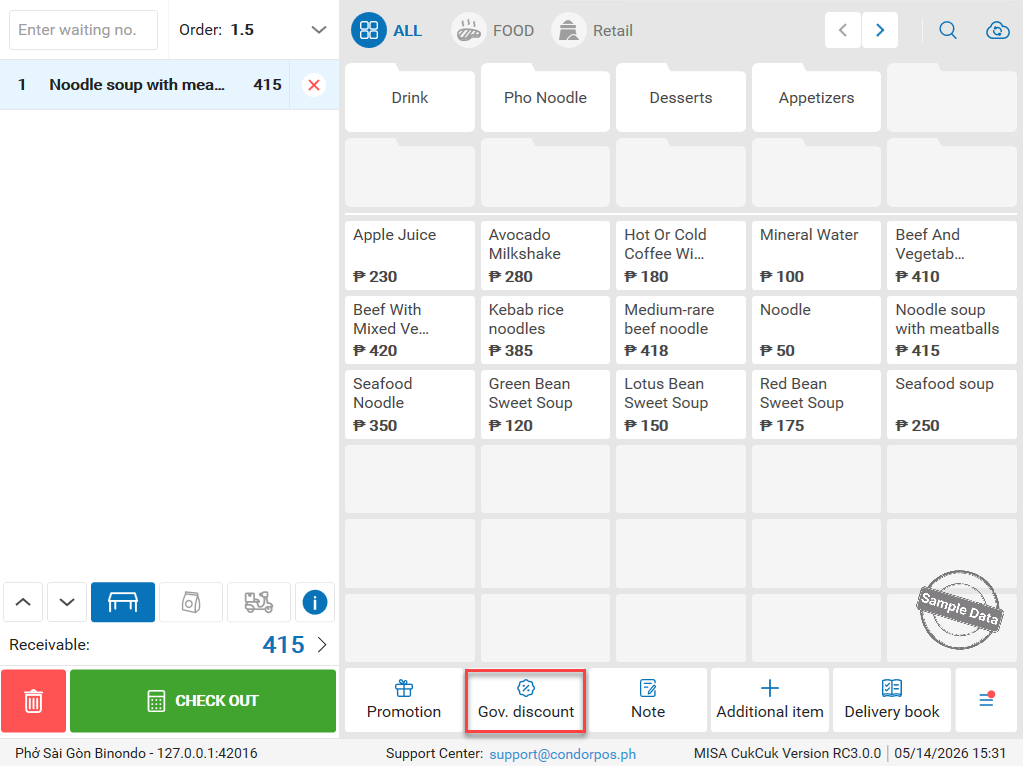
On Quick service, after selecting item(s), click Gov. discount.
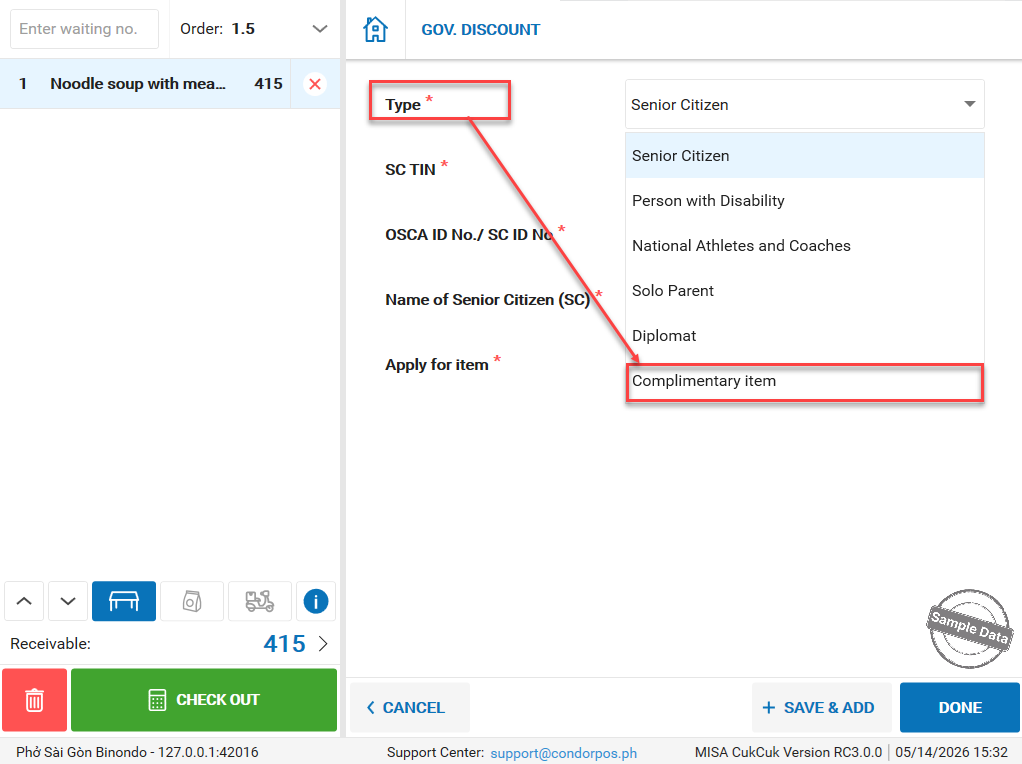
On Type part, select Complimentary item.
Select staff and reason.
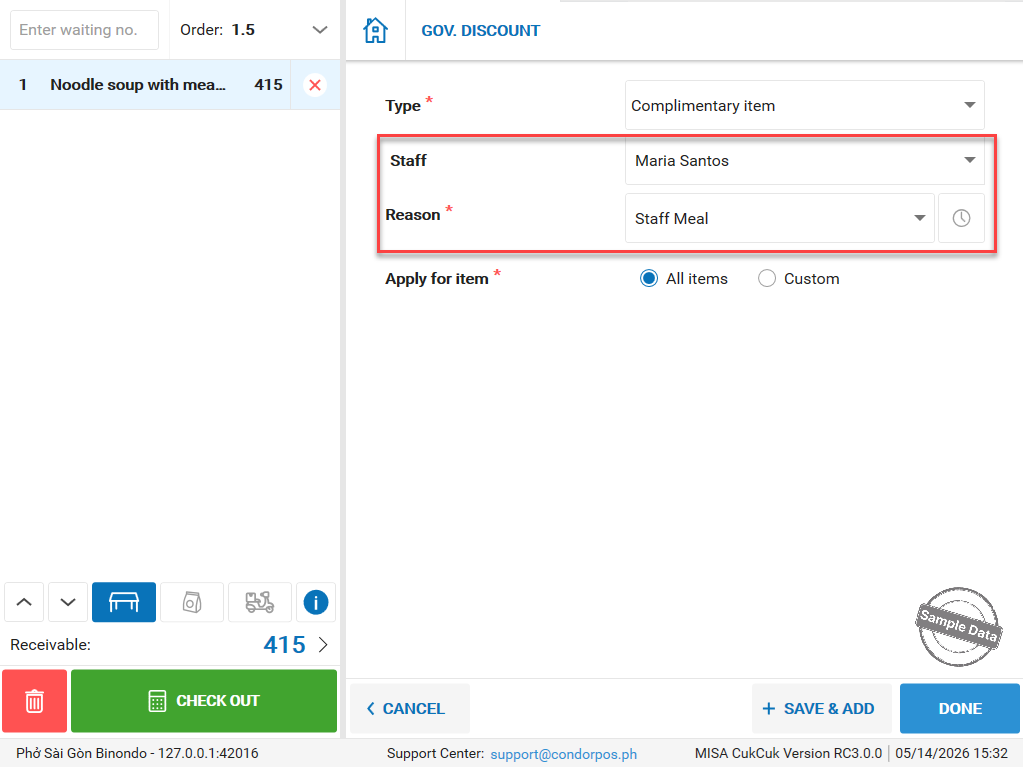
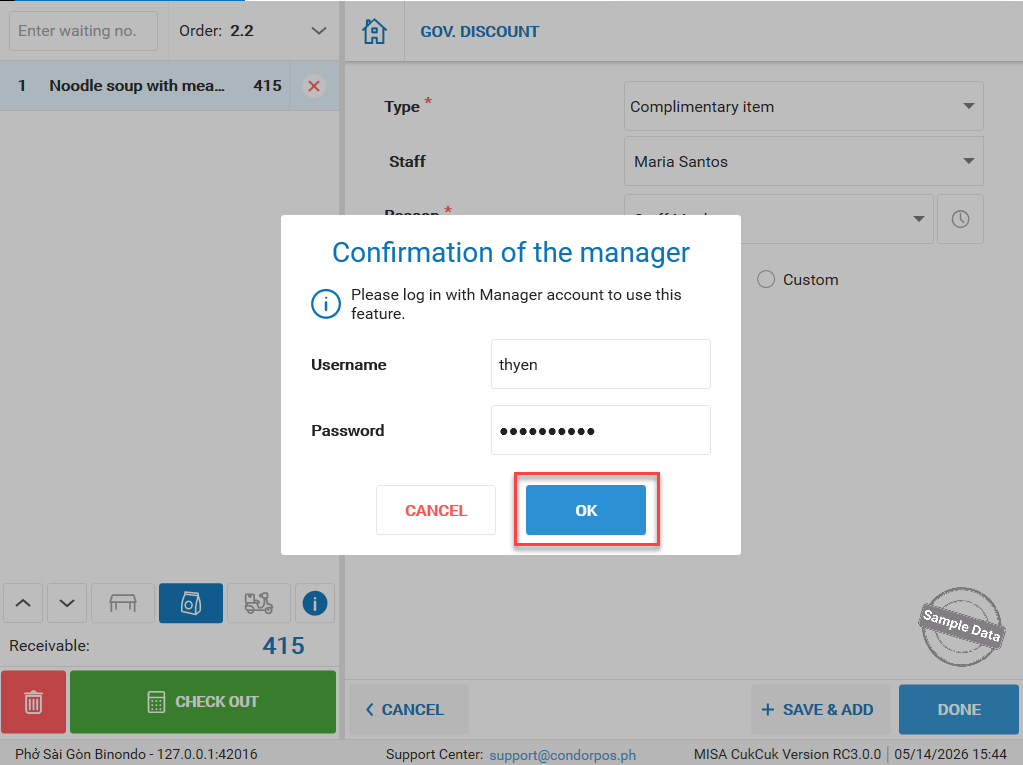
Upon clicking Done, the manager’s confirmation is needed. Enter the manager’s information and click OK.
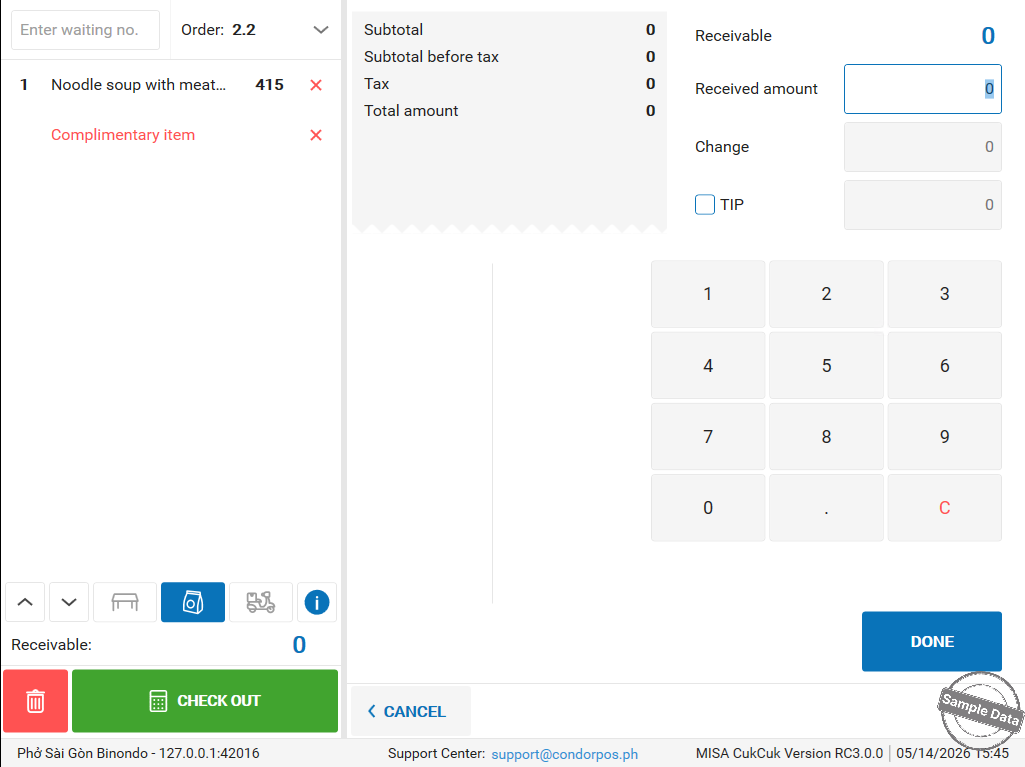
Click Check out. And then, click Done.
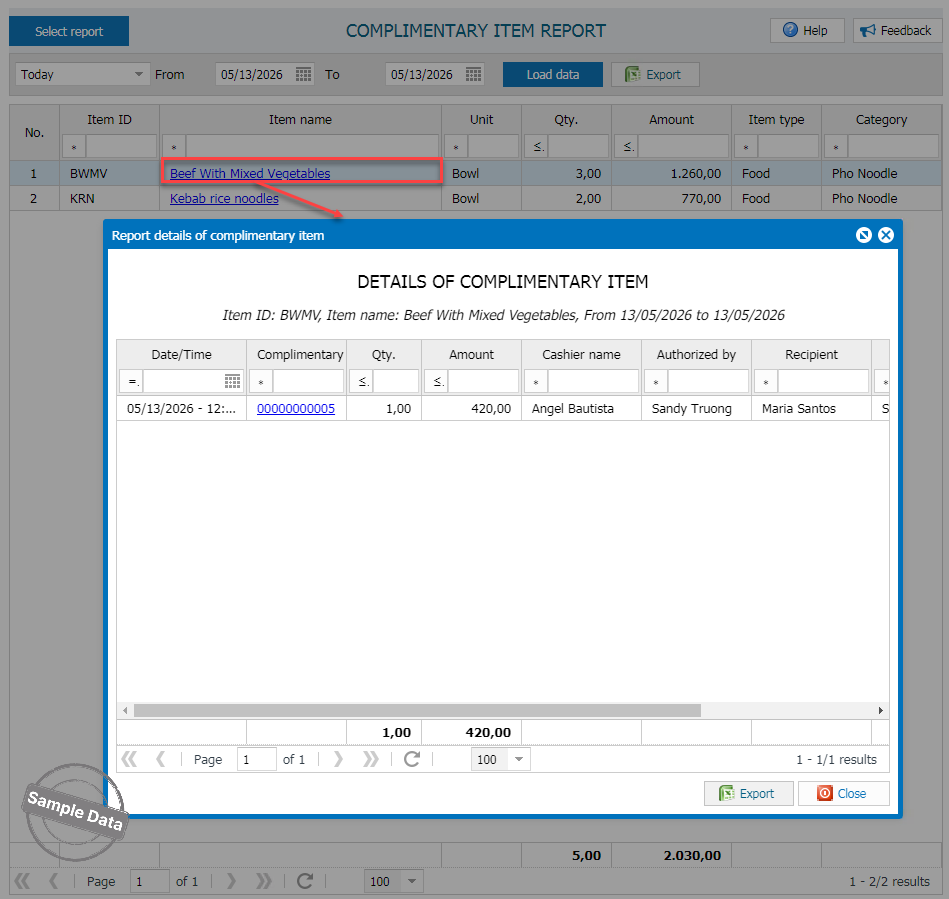
On the dashboard, go to Report/Sales and select Complimentary item report.
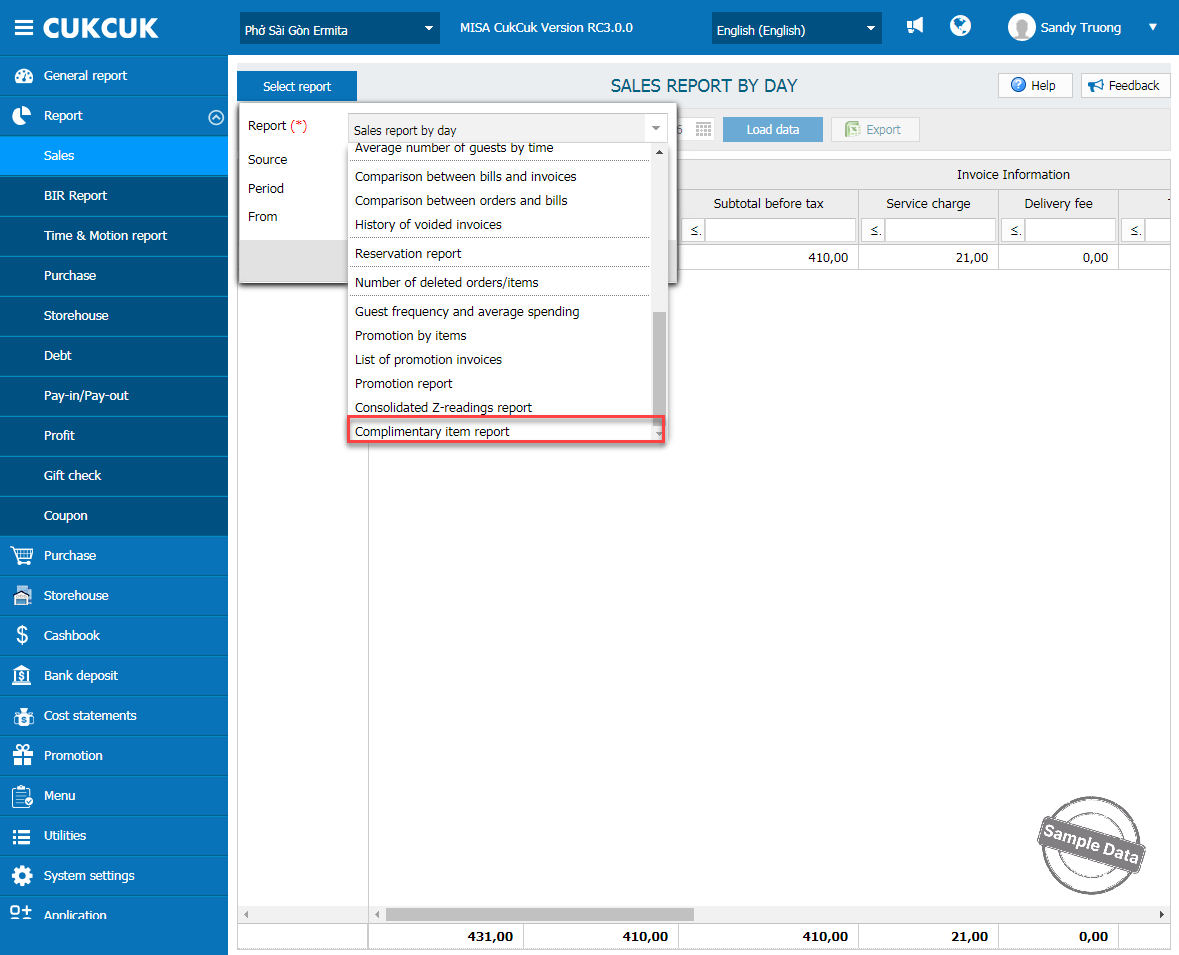
Click on the item to check details.
Have a nice day!
