
I. Purpose
This document is intended for support / technical staff using the tool to resolve closebook
(period-end closing) issues for customers using CUKCUK software. No programming
knowledge required — just follow the steps illustrated with screenshots below.
II. Instruction steps
1. What is this tool for?
ClosebookTool is an internal tool used to handle 2 situations related to the closebook (period-end closing) on a customer’s CUKCUK system:
| Function | When to use |
| Unlock Closebook | Customer reports the closing period is “stuck” / locked incorrectly and cannot proceed |
| Maintenance Closebook | Need to recalculate / update closebook data for a specific POS register, within a specific date range |
IMPORTANT:
This tool operates directly on the customer’s original data. Only use it when truly necessary and after confirming the correct procedure. If unsure, ask your supervisor before clicking Process.
2. Preparation before use
- The computer used to perform this task must be able to connect to the customer’s data server (SQL Server) — either on the same internal network, or via VPN if supporting remotely.
- Have a tool login account — request one from the technical/admin department (this is a separate account for the tool itself, not the CUKCUK software login account).
- Clearly identify: which customer needs processing, which time period, and which POS
register (if performing data maintenance).
3. Connect to customer data
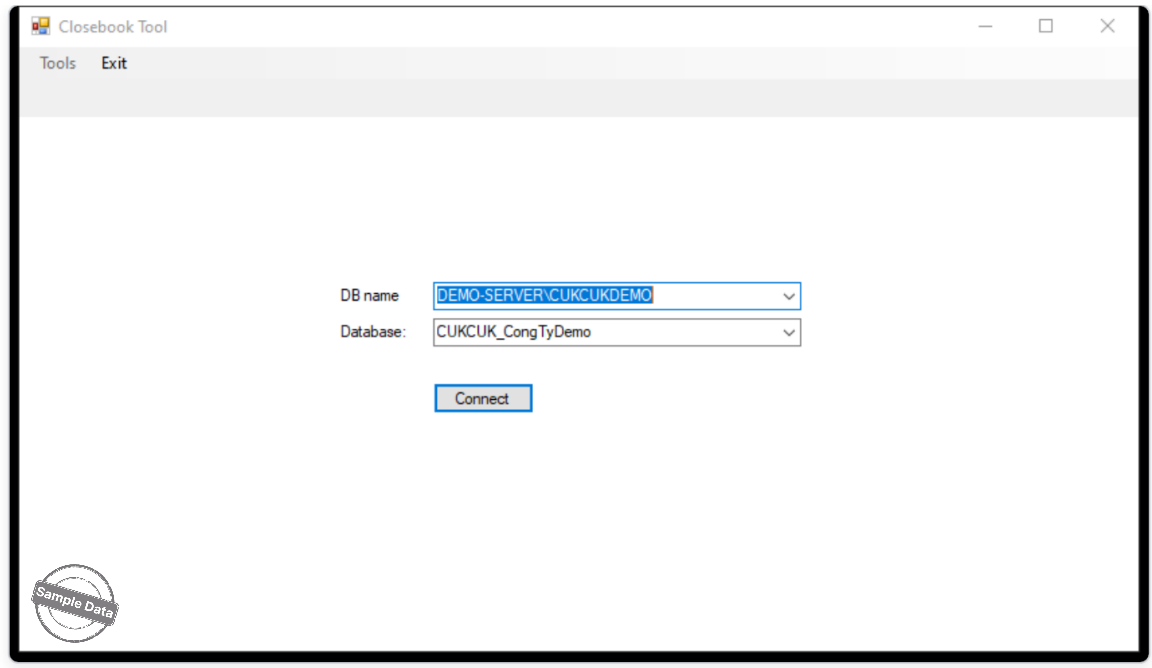
- Open the ClosebookTool application.
- In the DB name field, the tool automatically scans and lists the data servers found on the network. Select the correct server for the customer you need to work on.
- In the Database field, select the correct database (usually named after the customer’s code/name).
- Click the Connect button.
Note
- If DB name is not selected, the tool shows: “Please select a database instance.“
- If Database is not selected, the tool shows: “Please select a database.”
→ Select both fields fully, then click Connect again.
4. Log in to the tool
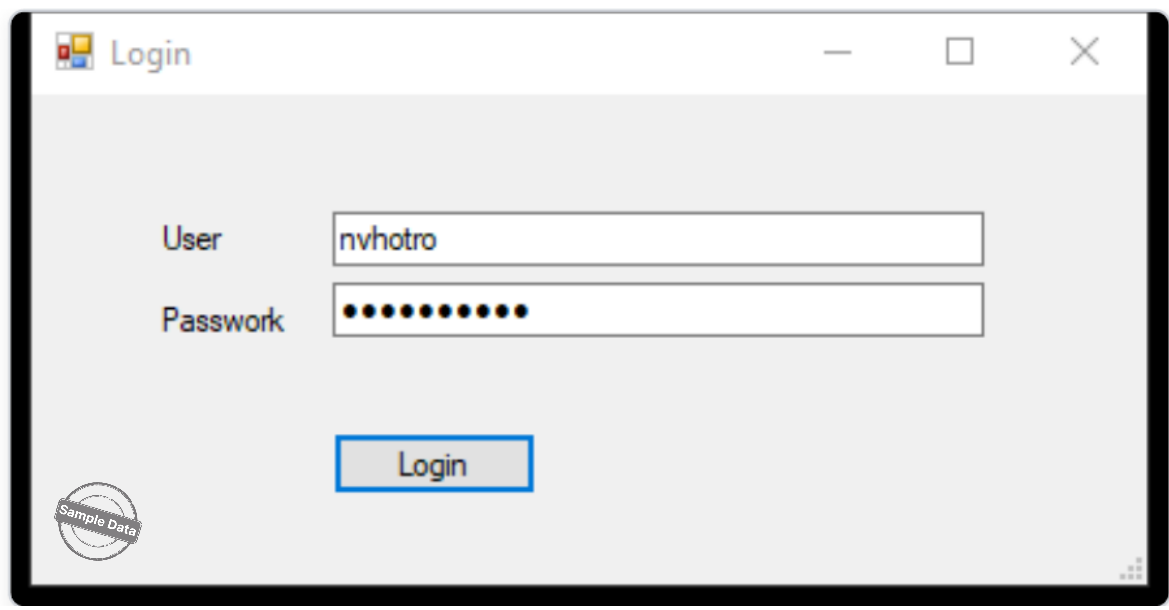
After clicking Connect, the login screen appears:
- Enter the User and Password you were given.
- Click Login.
- If the information is incorrect → the tool shows “Invalid username or password.” — check and re-enter (note: case sensitive).
- If you click Cancel → you return to the database selection screen from Step 1.
CAUTION: Do not share the tool’s login account with unauthorized persons. This account has permission to directly modify the customer’s closebook data.
5. Open the function you need
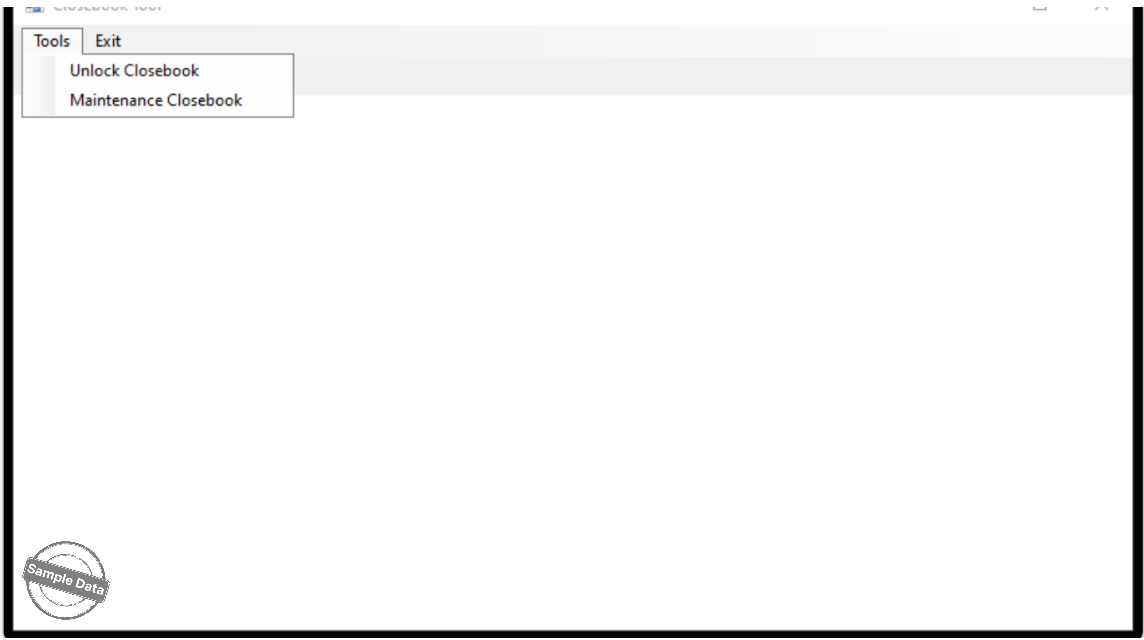
After a successful login → the Tools menu at the top becomes active, containing 2 functions: Unlock Closebook and Maintenance Closebook.
6. Function: Unlock Closebook (Unlock a stuck closing period)
Use when: the customer reports being unable to close or process the closing period because it is locked incorrectly or was left in an incomplete state.
Steps
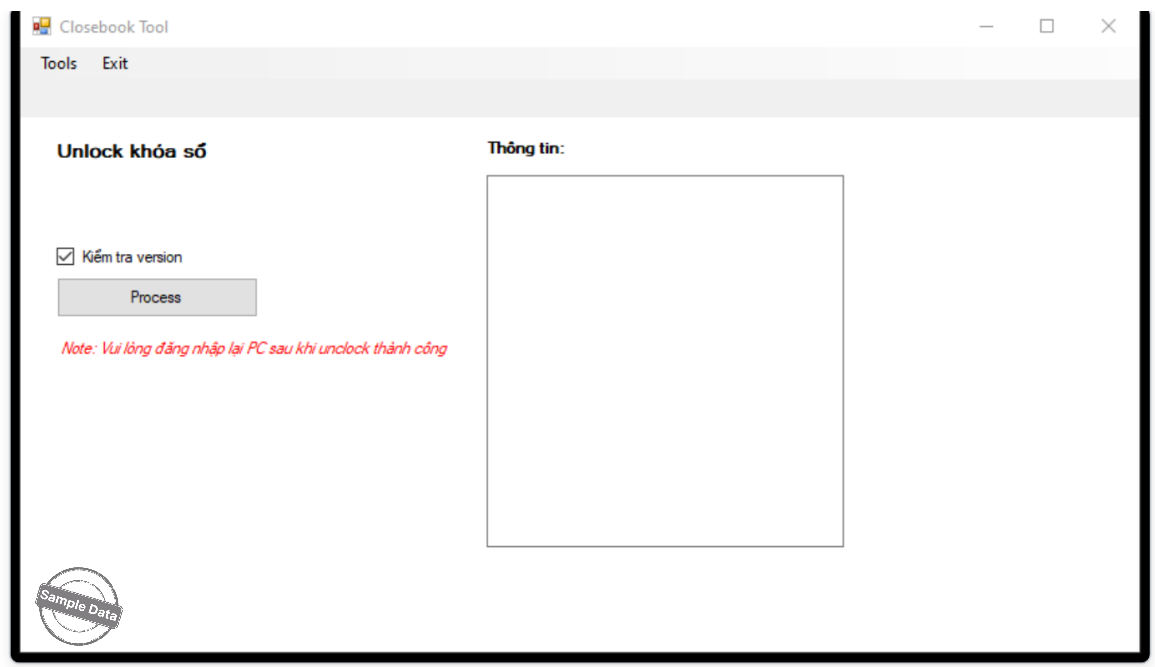
- Go to Tools → Unlock Closebook.
- By default, the Check version box is already checked — keep it as is unless
instructed otherwise. - Click Process.
- A confirmation dialog appears — click Yes to continue (No to cancel the action).
- Watch the progress in the Information panel on the right, and wait until you
see the closing line of dashes.
Reading the results
| Displayed content | Meaning |
| Unlock thành công: X (Unlock successful: X) |
Total number of closing periods processed |
| TH1: … / TH2: … | Count by 2 different error-case groups |
| Đồng bộ BE thành công (BE sync successful) |
If TH2 occurred, the data has been automatically synced to the central system |
| Đồng bộ BE thất bại (BE sync failed) | Syncing to the central system was not successful |
| Không có khóa sổ nào được xử lý (No closing periods processed) |
No closing periods with errors requiring unlock were found |
IMPORTANT NOTE
After a successful Unlock, ask the customer to log out and log back in on the POS (point-of-sale) machine so the software correctly picks up the new state. Skipping this step means the customer will still see the same error.
7. Function: Maintenance Closebook (Maintain closebook data)
Use when: you need to recalculate or update closebook data for a specific POS register,
within a specific date range.
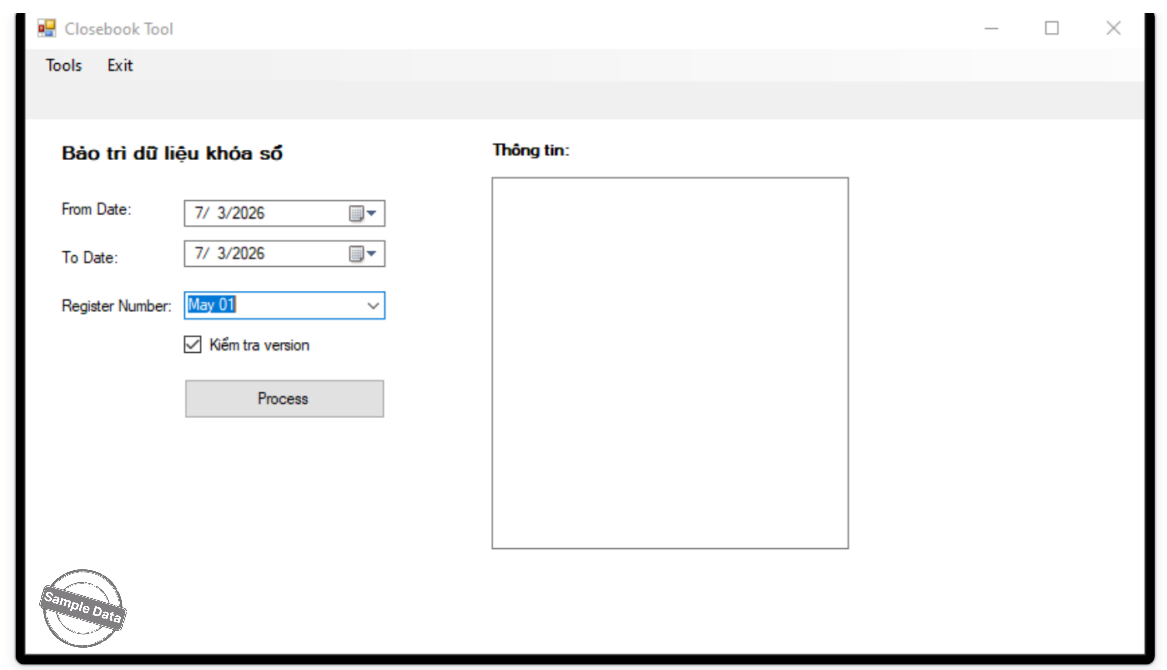
Steps
- Go to Tools → Maintenance Closebook.
- Select the From Date and To Date to process.
- Select the Register Number — the POS register to process.
- Keep Check version checked (checked by default) unless instructed otherwise.
- Click Process and monitor the result in the Information panel.
Note
The tool automatically checks and will show an error if:
- From Date or To Date is a future date (later than the current date)
- From Date is later than To Date
In that case, select valid dates again and click Process again.
Reading the results
| Displayed content | Meaning |
| Cập nhật thành công X khóa sổ (Update successful: X closing periods) |
Number of closing periods updated, then automatically synced to the central system |
| Đồng bộ BE thành công / thất bại (BE sync successful / failed) |
Result of syncing to the central system |
| Không có khóa sổ nào cần cập nhật (No closing periods need updating) |
No data needs processing in the selected time range |
Exit / switch to another customer
Go to the Exit menu to return to the initial database selection screen — use this when you
need to switch to processing a different customer/database.
9. Common troubleshooting
| Situation | Possible cause | Resolution |
| DB name field has no data | The customer’s data server cannot be found on the network, or the current machine is not connected |
Check the network/VPN connection, confirm the server name with technical staff |
| Shows “Cannot connect to instance…” |
Wrong server name, server is down, or access has not been granted | Contact the infrastructure/technical department to check the server |
| Shows “Invalid username or password.” |
Incorrect tool account/password entered |
Check the credentials provided and re-enter them accurately |
| Shows “Error loading device list…” |
Unable to retrieve the POS register list from customer data, or incorrect database access rights |
Check that you connected to the correct database with the correct access rights; if the error persists, report it to technical staff |
| BE sync failed | Internet connection lost, or the central system is experiencing an interruption | Retry after a few minutes; if it still fails, report it to technical staff to check the central system |
Important notes
REMEMBER
- Always confirm you have the correct customer / correct database before clicking Connect — to avoid accidentally operating on another customer’s data.
- Keep the Check version box checked unless instructed otherwise by the technical department.
- For Unlock Closebook: always remind the customer to log in again on the POS machine after processing is complete.
- If the result looks abnormal or you are unsure about an action, stop and contact
the technical department instead of continuing on your own.
Need further support?
Contact the technical/system administration department responsible for this tool to request an account or get help with situations outside the scope of this document.
