
I. Purpose
This feature allows restaurants to automatically export sales reports in TEXT ASCII format and submit them to the management of VISTA shopping centers in the Philippines.
The report is automatically generated after the end-of-day closing, stored in the Archive folder on the ENT server, and can also be exported manually from the POS when necessary.
This feature helps restaurants:
- Reduce the time required to prepare daily reports.
- Minimize errors caused by manual data entry and consolidation.
- Ensure that reports follow VISTA’s required format and rules.
- Allow managers to check and re-export reports for a selected period.
II. Users
This feature applies to the following users and system components:
- Restaurant owners and managers: Configure VISTA information, monitor, and export reports.
- Cashiers or assigned users: Manually export VISTA reports if they have the required permission.
- POS system: Provides sales data and supports manual report export.
- ENT server: Automatically consolidates data, generates report files, and stores them.
- Dashboard: Provides restaurant and shopping center configuration settings.
II. Instruction steps
1. Set up VISTA Integration on the dashboard
- On the dashboard, go to System Settings → General Settings.
- On the General Information tab, click Edit.
- Check This restaurant is located in a shopping mall.
- Choose VISTA from the list.
- After selecting VISTA, enter the following information: Stall code and Sales Department Code.
- Maximum length: 128 characters.
- This is a required field.
- The field cannot be left blank.
- Enter the full field name as required by the system. Do not use abbreviations.
- Click Save to apply the settings.
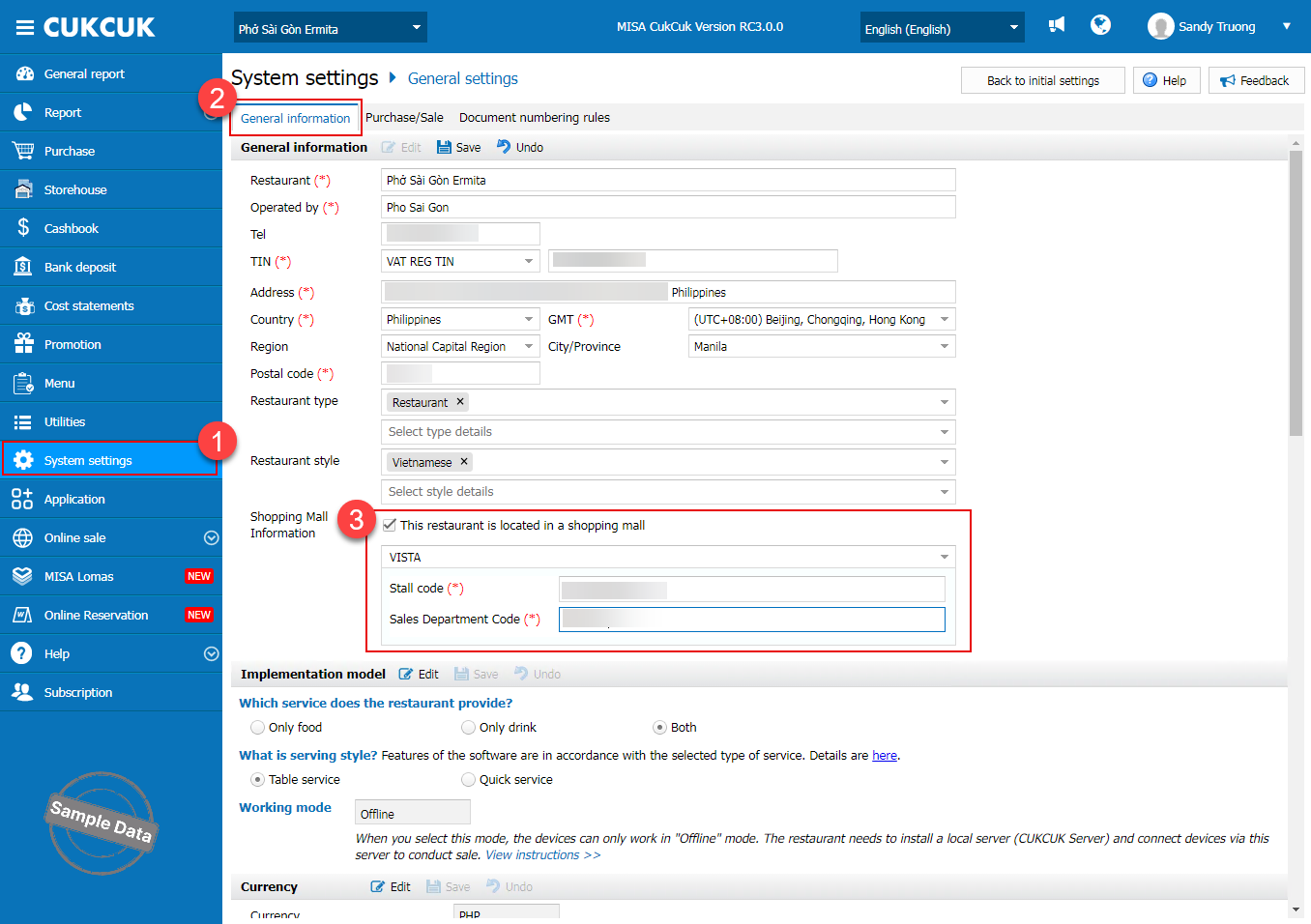
After VISTA information is saved for the first time, the system automatically creates a VISTA folder on the ENT server.
2. Automatically export reports after End-of-Day Closing
2.1. Report Generation Time
When a device or the ENT server performs an end-of-day closing, the system automatically generates a VISTA report for the corresponding sales date.
The report is generated after the end-of-day closing is completed on each device or server.
2.2. Data Consolidation
The system consolidates:
- All invoices from the day, including regular and cancelled invoices.
- Sales data from each POS device.
- Data updated from other devices on the same day.
- Data for days without invoices, if no transactions occurred.
If a device updates data late, the system may wait 5 to 10 seconds and then try again to ensure that all data is consolidated.
2.3. Report Format
Automatically generated reports use:
- TEXT format.
- ASCII encoding.
- The structure required by the VISTA template.
2.4. Automatic Report File Name
Automatically generated reports use the following format:
mmddyycc.sal
Where:
- mmddyy: The corresponding sales date.
- cc: The number of times the report has been generated for that day.
- sal: The report file extension.
When the system generates a file, the value of cc increases according to the system rules.
If a file with the same name already exists in the storage folder, the system does not overwrite the existing file. Instead, it creates a new file with the next cc number. The latest file contains the most recently updated results.
2.5. Report Generation Result
After the report is generated successfully:
- The file is saved in the Archive folder on the ENT server.
- The report appears within approximately one minute after the end-of-day closing.
- The manager does not need to send the report manually.
3. Sales and Tax Calculation Rules
The report uses the sales and tax rules applicable to the Philippines.
3.1. Sales Period
The sales period is calculated from:
6:00 AM on the previous day to 5:00 AM on the following day
The sales date is determined based on the starting date of this period.
For example, transactions from 6:00 AM on the 10th to 5:00 AM on the 11th are included in the sales date for the 10th.
3.2. Cancelled Invoices
Cancelled invoices are processed according to each data field, including:
- Taxable sales.
- Total VAT.
- Discount value.
- Total service charge.
- Total non-taxable sales.
Depending on the field, cancelled invoice data may be included in or excluded from the report.
3.3. Discounts
The total discount value does not include tax.
3.4. Service Charge
Service charge may be included in taxable sales according to the report data rules.
If service charge is non-taxable, the system transfers that service charge amount to non-taxable sales.
3.5. Tax
Tax is calculated according to the original tax rules of each invoice and does not include tax generated from non-taxable service charges.
3.6. Report Format
The system preserves the field format required by the VISTA report template and does not change the file structure.
4. Manually Export Reports from the POS
On the POS, open the feature list and select: Export report for trade center
In From date – To date, select the period for which you want to export reports.
- You can export a maximum of 31 days at a time.
- Both the start date and end date are required.
- The start date cannot be later than the end date.
If the selected period exceeds 31 days, the system displays: Only data within 31 days can be exported. Please try again. Click OK to close the notification and select an appropriate period.
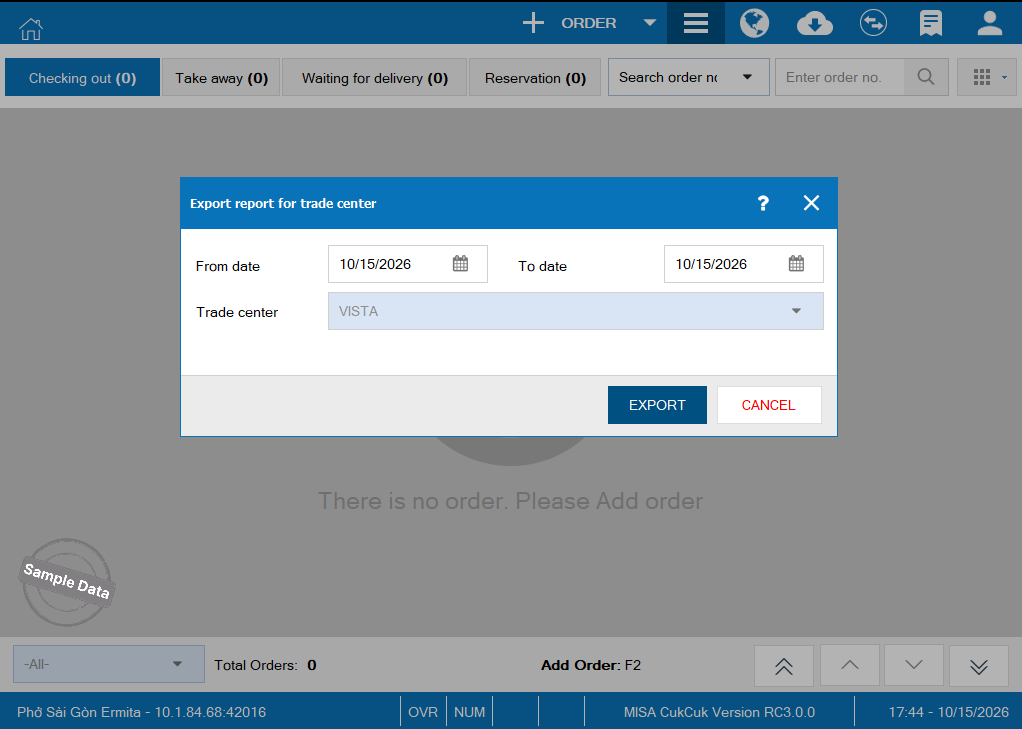
If no export dates are selected, the system processes the request according to the existing system rules and may require you to select the period again.
Click Export. The system opens a folder selection window.
- Select the folder where you want to save the report.
- Click Save to confirm.
- Click Cancel to cancel the export.
The file name is generated according to VISTA’s naming rules.
The system exports TEXT files only for dates that have VISTA configured and have end-of-day data. No report file is exported for a date without end-of-day data.
Have a nice day!
