
I. Purpose
Help restaurants at Shangri-La shopping mall in the Philippines configure a shared 12-hour operating period across POS devices, automatically close at the end of that period, and generate sales reports required by the mall.
Restaurants can generate reports automatically during Z closing or export them manually for a selected date range on the POS. Reports are saved as ASCII .txt files.
II. Instruction steps
1. Configure the trade center and operating hours
- On the management site, go to System settings → General settings → Restaurant information.
- Under Trade center, select Shangrila.
- Enter the Start time:
- This field is required.
- Enter a whole-hour value from 00:00 to 23:00.
- Review the End time, which the system calculates automatically:
End time = Start time + 12 hours
- Enter the Sales Department Code:
- This field is required.
- A maximum of 128 characters is allowed.
- Enter the full name without abbreviations.
- Save the settings.
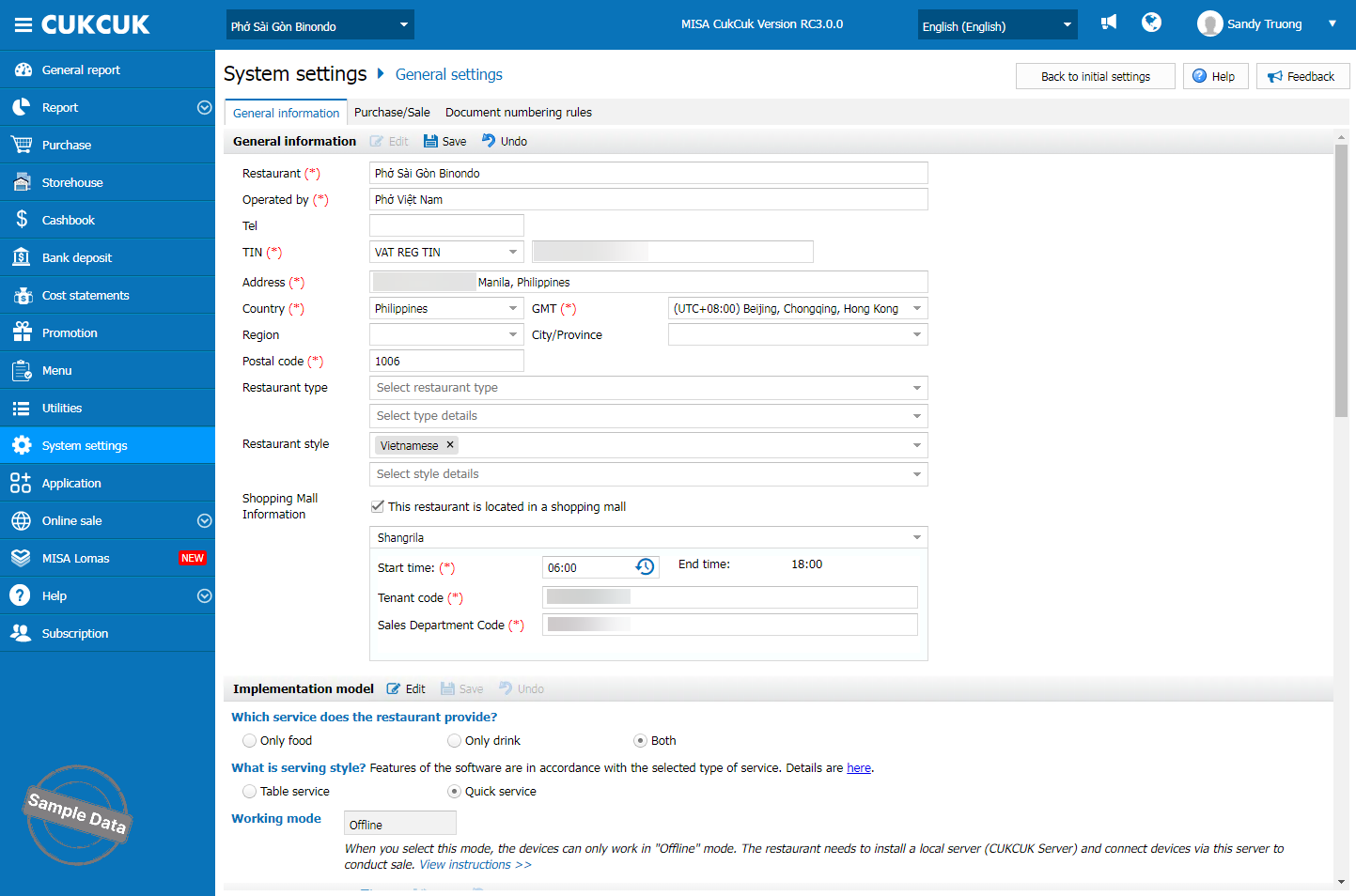
Example: If the start time is 06:00, the end time is 18:00 the same day.
Notes:
- When the settings are saved, the system updates the Business hour end time to match the Working time end time. The Business hour start time remains unchanged.
- If you later select another trade center, the system does not automatically restore the previous end time.
2. Process sales on the POS during the configured operating period
After receiving the settings from the management site, all FS and QS POS devices apply the restaurant’s shared operating period.
- Open a shift from the Start time of the new business day.
- Enter and process orders during the 12-hour operating period.
- At the end of the period, the system automatically closes according to the existing closing workflow.
- After closing, a new shift can only be opened from the Start time of the next business day.
Notes:
- Automatic closing occurs at 59 minutes and 59 seconds past the configured end hour.
- Sales can only be processed within the configured operating period.
- If a POS device has not received the operating-hour settings, it continues to use its current sales settings.
3. Automatically generate reports during Z Closing
When the restaurant performs Z closing, the ENT server automatically generates or updates the Shangri-La sales report.
The system:
- Consolidates data from POS devices.
- Retains only the latest report file.
- Generates data for 12 hourly periods and one summary record.
- Exports an ASCII .txt file.
- Saves the report in the Archive folder specified in the system configuration.
Note: If report generation or updating fails, the system still allows Z closing to be completed.
4. Manually export reports on the POS
On FS or QS POS:
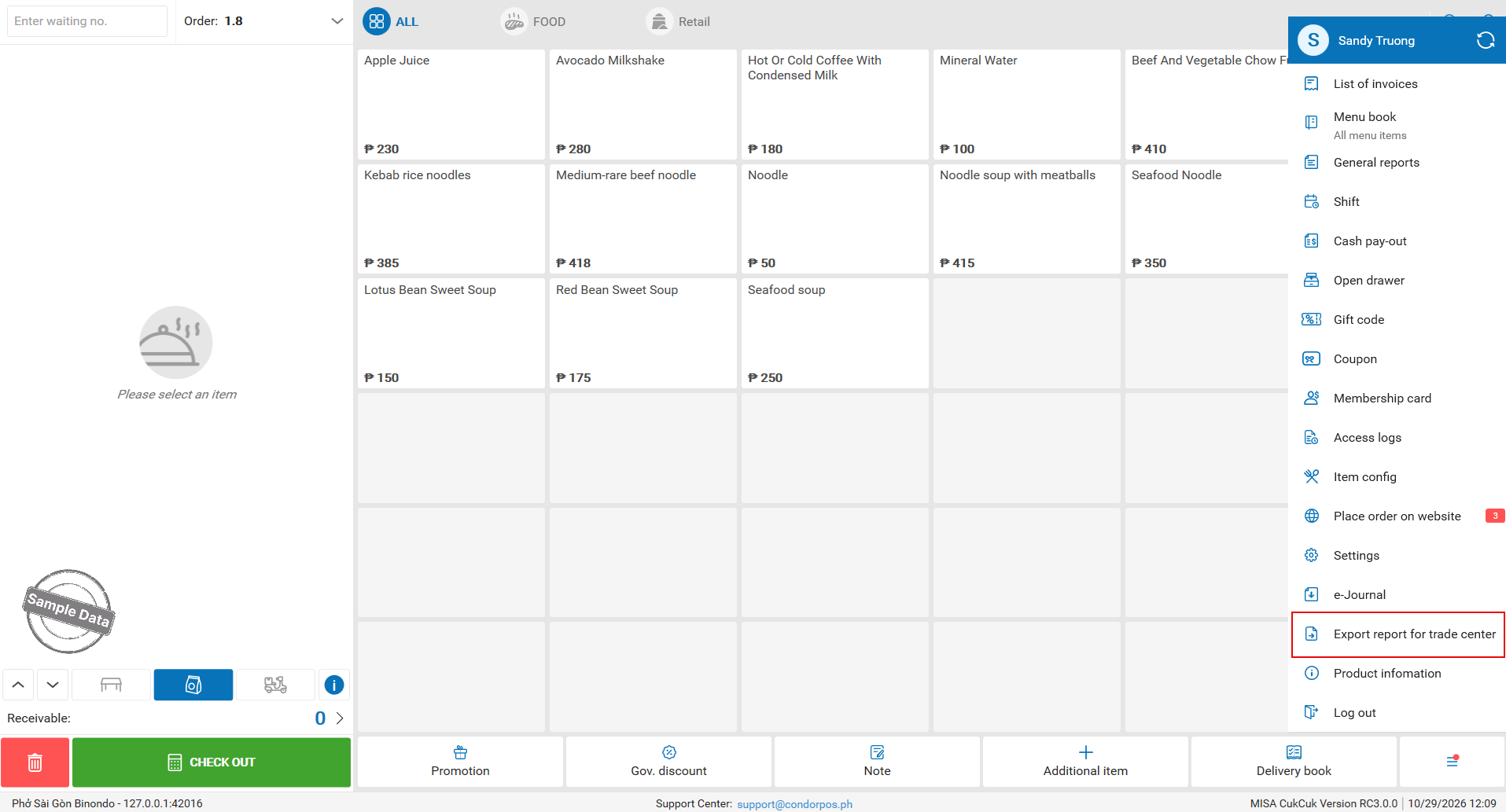
- Open Export reports for trade center.
- Select the date range under From date → To date:
- The default is the current date.
- Future dates cannot be selected.
- The maximum date range is 31 days.
- Select a location to save the file.
- Export the report.
The system exports the report as an uncompressed ASCII .txt file and displays the export result.
5. Review report data
When reconciling the Shangri-La report, note the following:
- Canceled bills and their voided original bills are excluded.
- The SC/PWD 5% discount is calculated on the Subtotal.
- Service charge is recorded based on the actual transaction data, whether or not tax applies.
- Gross sales are calculated as follows:
Note: Before submitting the report to the mall, verify the file structure, field order, content format, and file naming rules against the confirmed Shangri-La specifications.
