
I. Purpose
Help cashiers enter appropriate selling prices for items that allow flexible price adjustments when taking orders on Quick Service (QS) POS, such as charges that vary by time or service duration.
The adjusted price applies only to the item in the current order and does not change its price in the menu catalog. The system uses the confirmed price to calculate the item amount and the bill total.
II. Users and Scope
- Users: Cashiers or staff with permission to adjust prices, as configured by the restaurant manager.
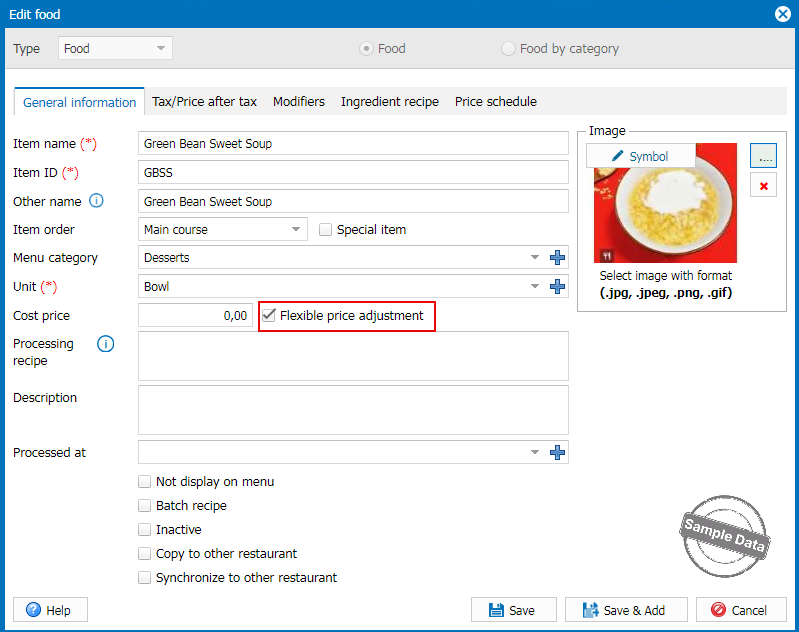
- Prerequisite: The item must have flexible price adjustments enabled on the dashboard.
III. Instruction Steps
1. Select an item to adjust its price
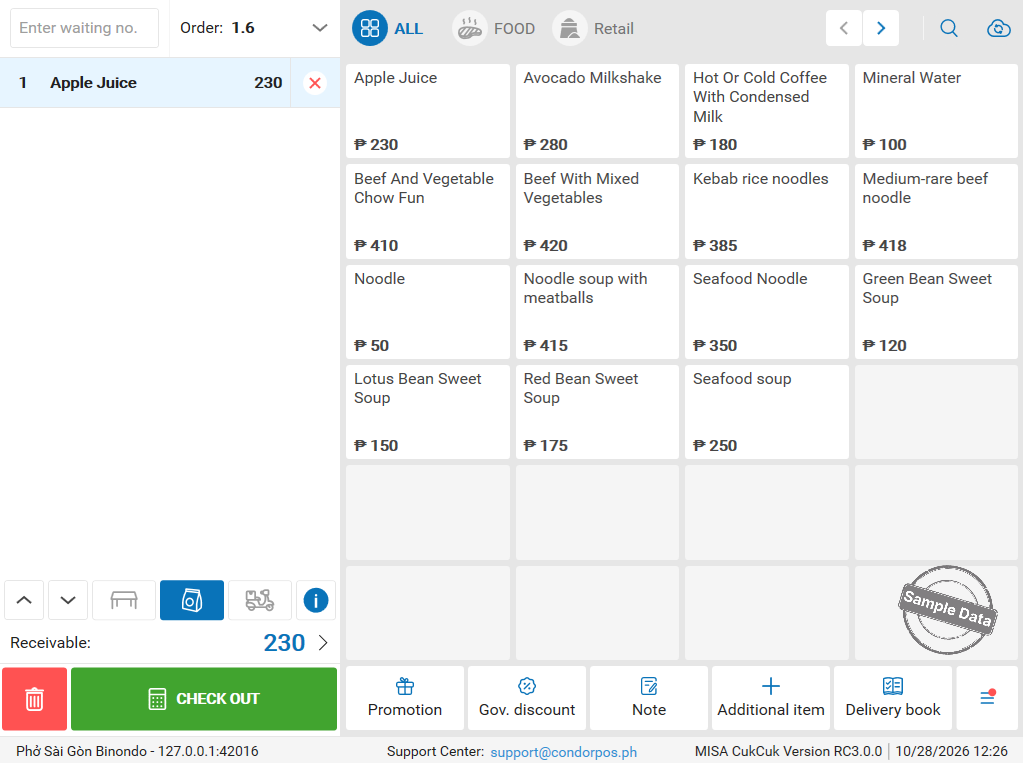
- On the QS POS order entry screen, select an item that allows manual price adjustments.
- The system opens the price entry screen and displays the item’s current price by default.
2. Enter and confirm the selling price
- Keep the default price or tap on the price and enter a new selling price.
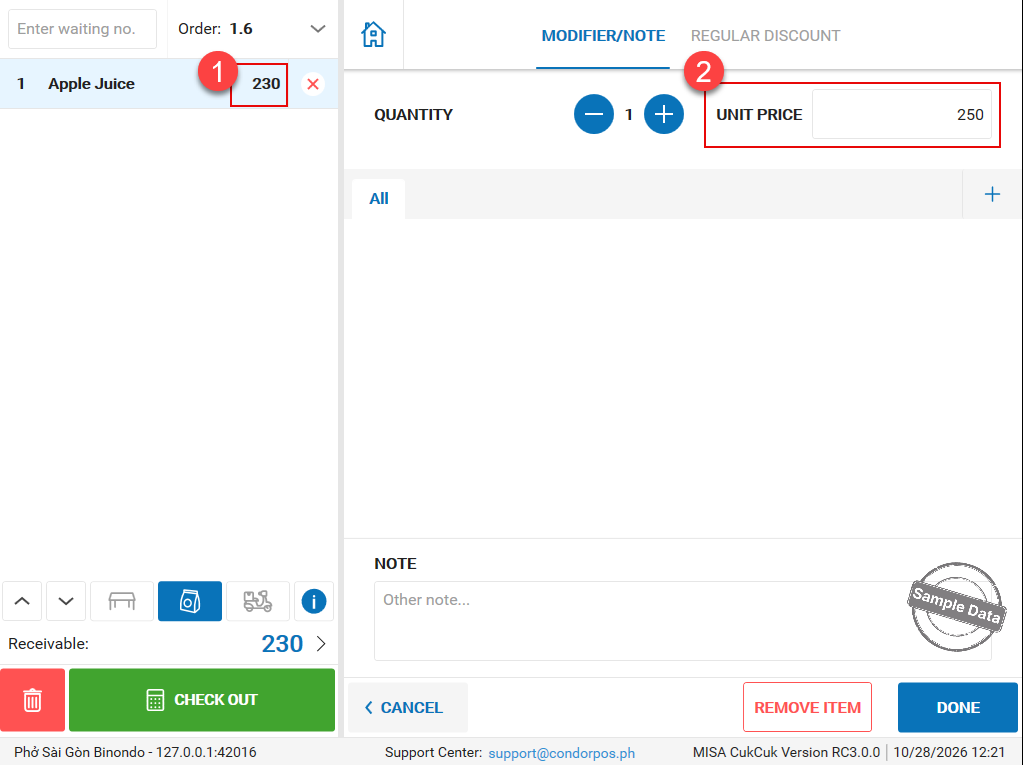
- Tap Done to confirm.
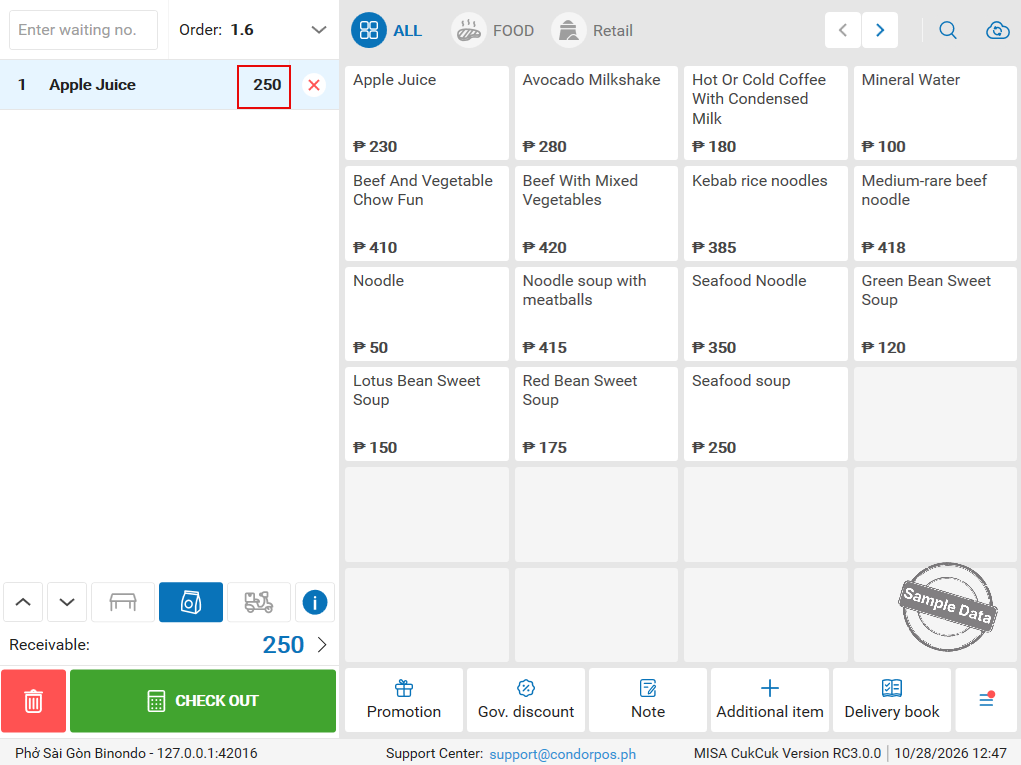
The price entry screen closes, and the item is added to the order at the confirmed price.
Notes:
- You can enter 0 or a price with decimal places.
- If you enter a negative price, the system automatically resets it to 0 without displaying an error message.
- If you tap Cancel or close the price entry screen, the item is still added to the order at its current price. The newly entered price is not applied.
3. Review the price and item amount
After adding the item, check its unit price, quantity, and item amount in the order.
The system calculates the item amount as follows:
Item amount = Confirmed unit price × Quantity
Taxes, promotions, and the bill total are calculated according to the existing POS rules.
Note: Adjusted prices are saved separately for each order and do not update the item’s menu catalog price.
4. Adjust prices for multiple identical items
4.1. When identical items are not split into separate rows
- If you adjust the price of an item row with a quantity of 2 or more, the new price applies to all quantities in that row.
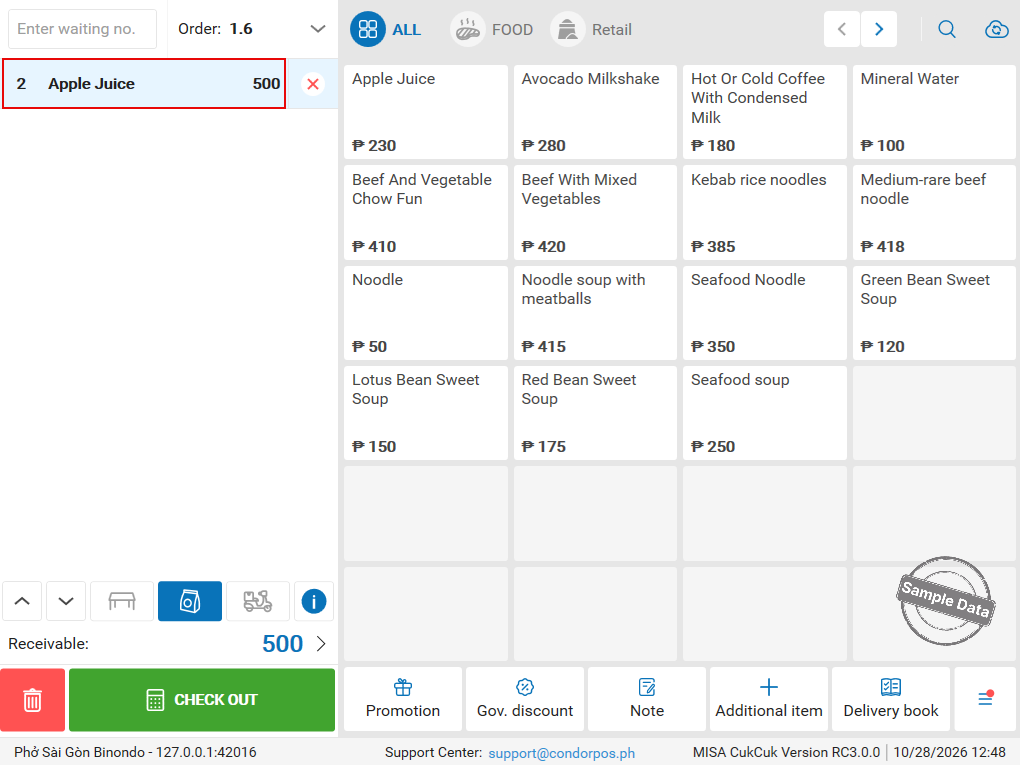
- If you add the same item again after adjusting its price, the system creates a new row at the menu catalog price instead of merging it into the adjusted row.
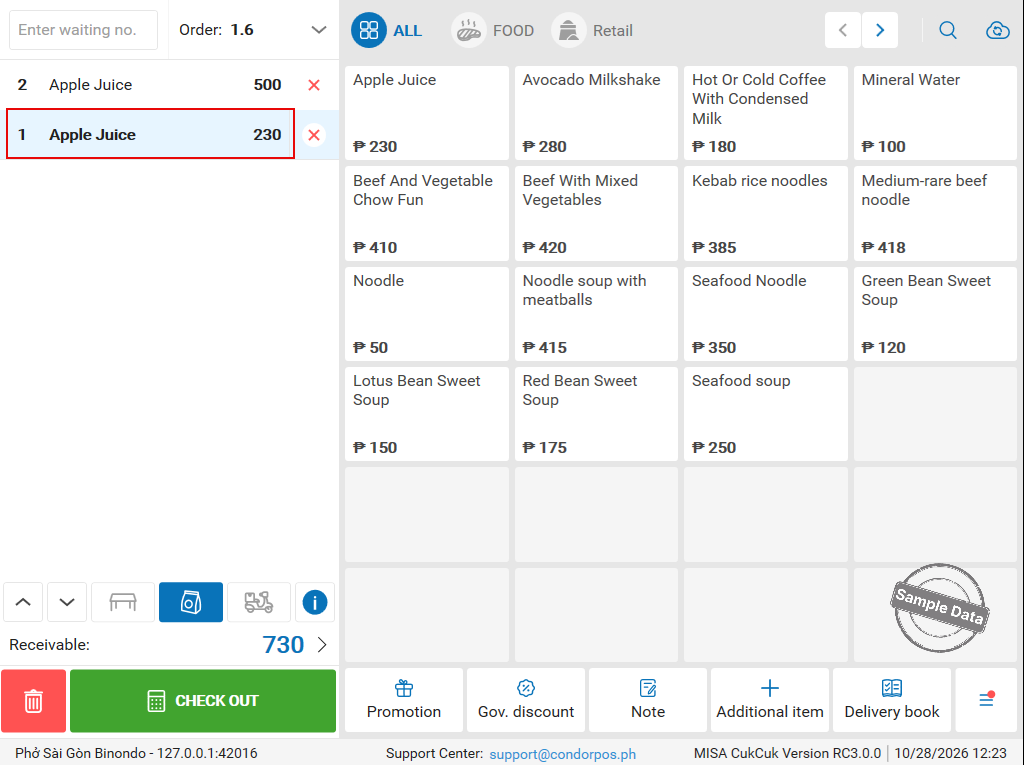
4.2. When identical items are split into separate rows
The adjusted price applies only to the edited item row and does not affect the other rows.
5. Check prices after updating order information
5.1. Change the service type or pricing policy
- Items not yet sent to the Kitchen/Bar: Prices are reset to the menu catalog prices.
- Items already sent to the Kitchen/Bar: The adjusted prices are retained.
5.2. Select a sales channel
The system resets item prices according to the selected sales channel’s prices. Cashiers can still enter new prices for items that allow manual price adjustments and have not yet been sent to the Kitchen/Bar.
Have a nice day!
