
I. Purpose
The manager can set up to collect service charge and control when and by whom this charge is edited or removed.
II. Instruction steps
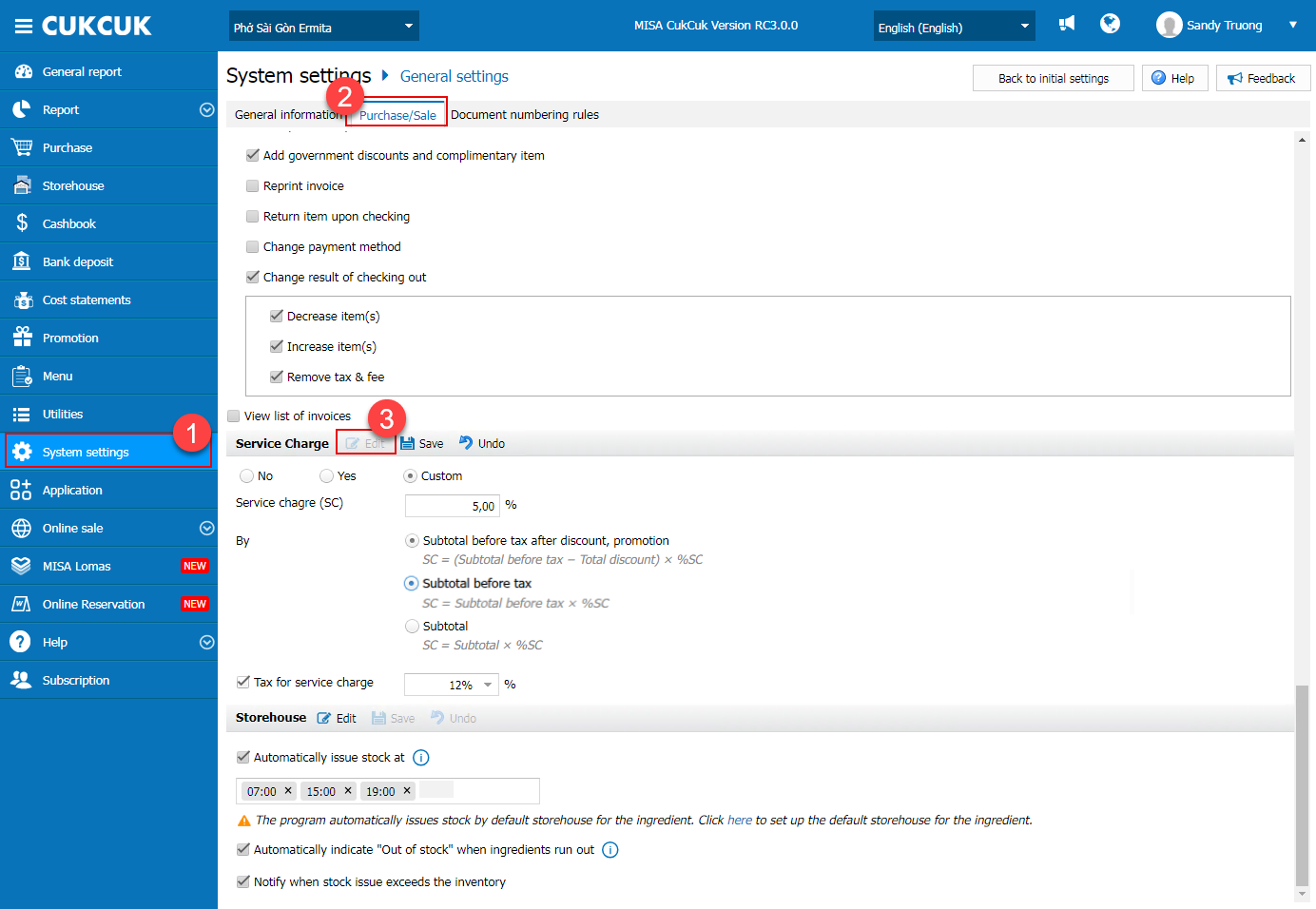
- On the management page, go to System settings/General settings.
- Scroll down to Service charge tab, click Edit.
- Turn Service Charge On/Off
- Check No – never add service charge.
- Check Yes – always add the default %.
- Check Custom – lets staff change or skip SC at the POS.
- Enter the default percentage (e.g., 5 %).
- SC Calculation Method
- Subtotal before tax after discount & promotion: excludes discounts first, then applies SC.
- Subtotal before tax: applies SC on the net amount before any tax, even if no discount.
- Subtotal applies SC on the gross amount including tax.
- Tax for service charge: Tick if SC itself is taxable; enter the tax rate if required.
- Then, click Save.
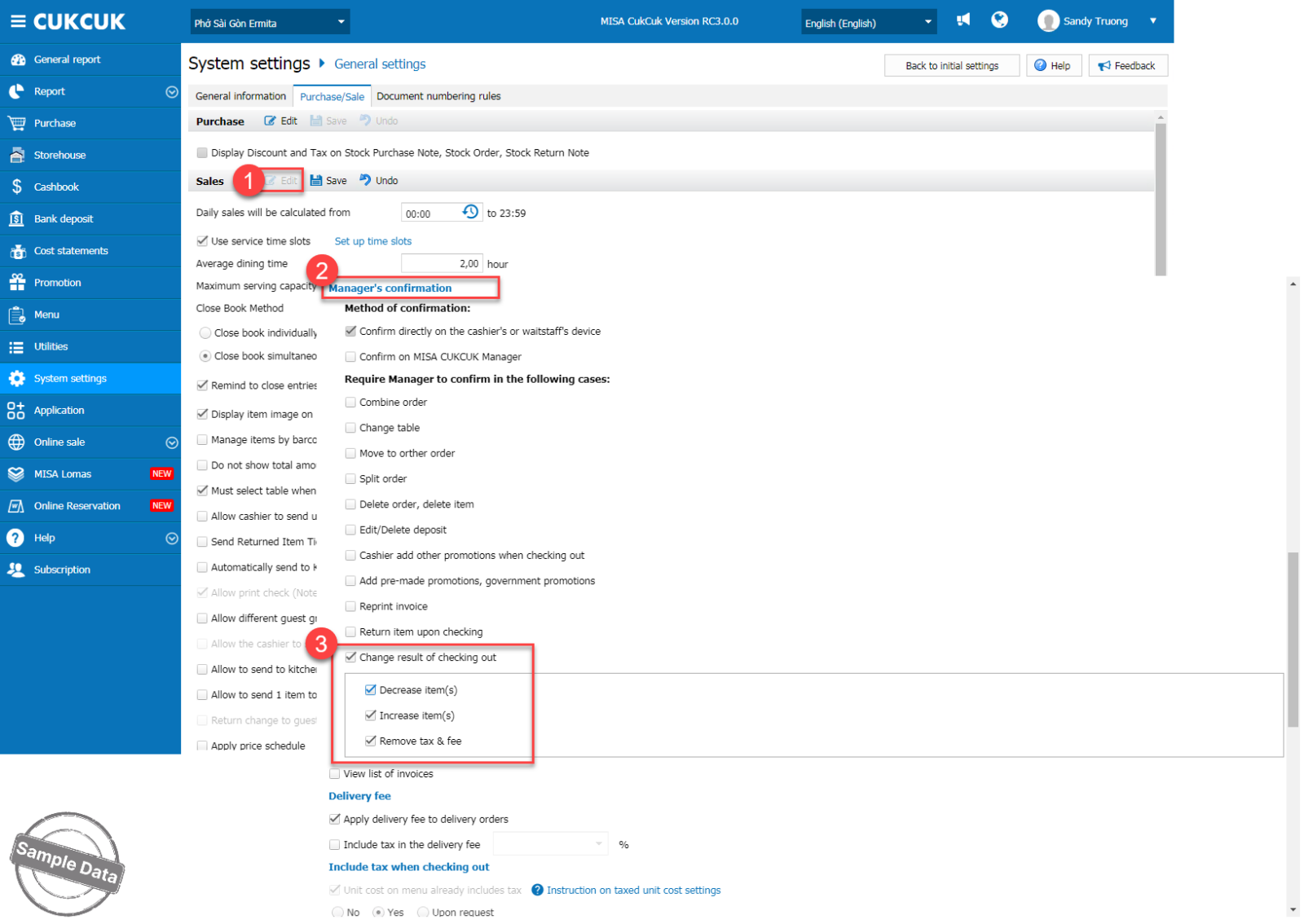
To control when and by whom this charge is edited or removed, on Sales tab, click Edit and scroll down to Manager’s confirmation. Check Change result of checking out and check applicable actions.
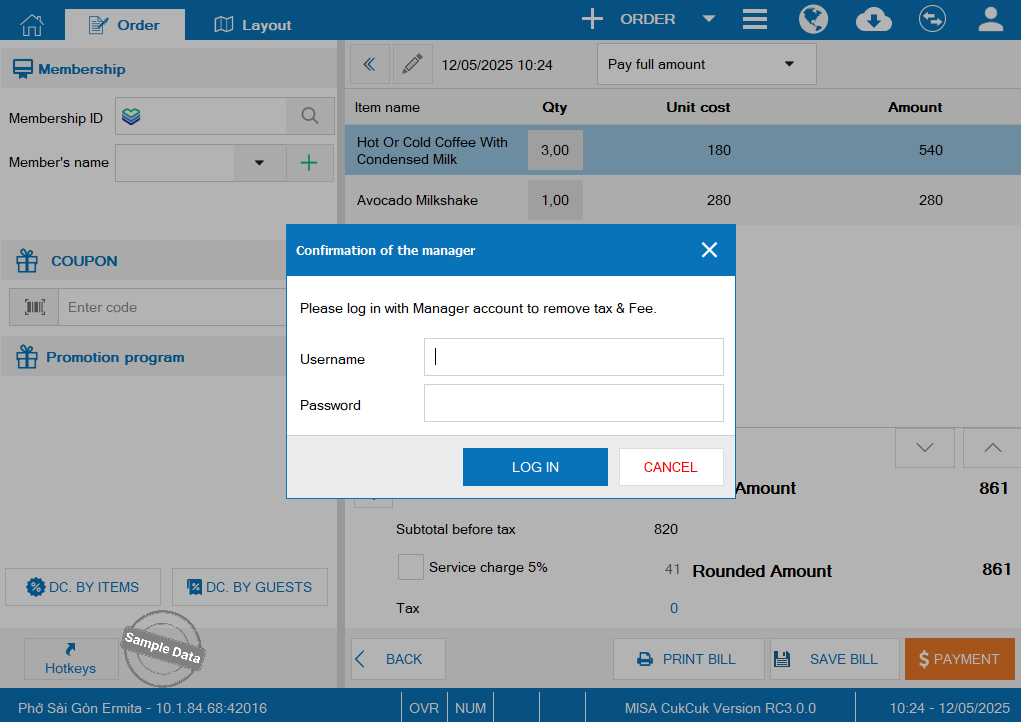
When the cashier chooses not to collect the service charge, the system will display a window requiring manager confirmation.
Have a nice day!
