
1. Purpose
The restaurants can create a list of time-priced services that are not food/drink such as karaoke rooms, movie rooms, etc.
2. Instruction steps
Note: This feature only supports dine-in restaurants with cashiers, waitstaff using PC/POS.
1. Go to Utilities/Time-priced service and click Add.
2. Enter information in General information tab and click Save or Save & Add
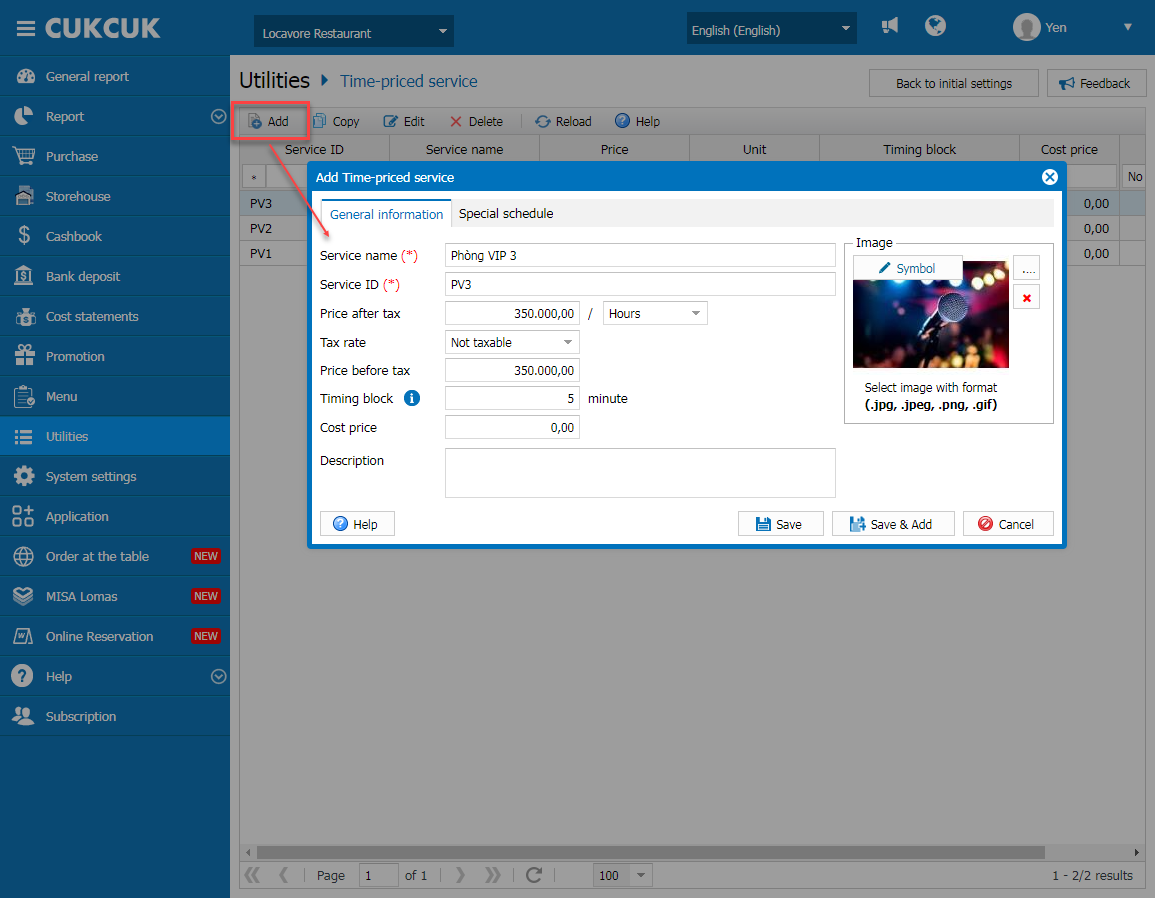
Note: Round up timing block
– 15-minute block: The system will round up to 15 minutes. E.g. actual time is 2 hours 6 minutes. It will be rounded up to 2 hours 15 minutes. You can set up the block at your need.
– The minimum block is 1 minute.
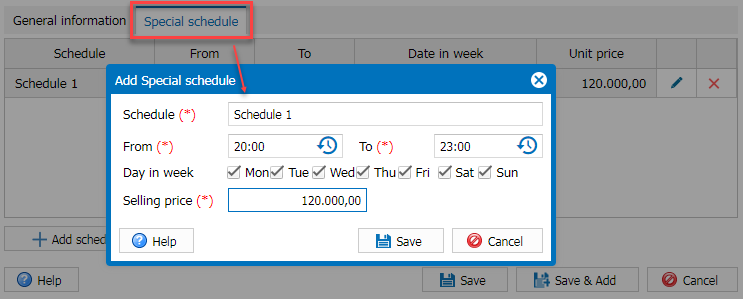
3. On Special schedule tab, set up different schedules for time-priced services:
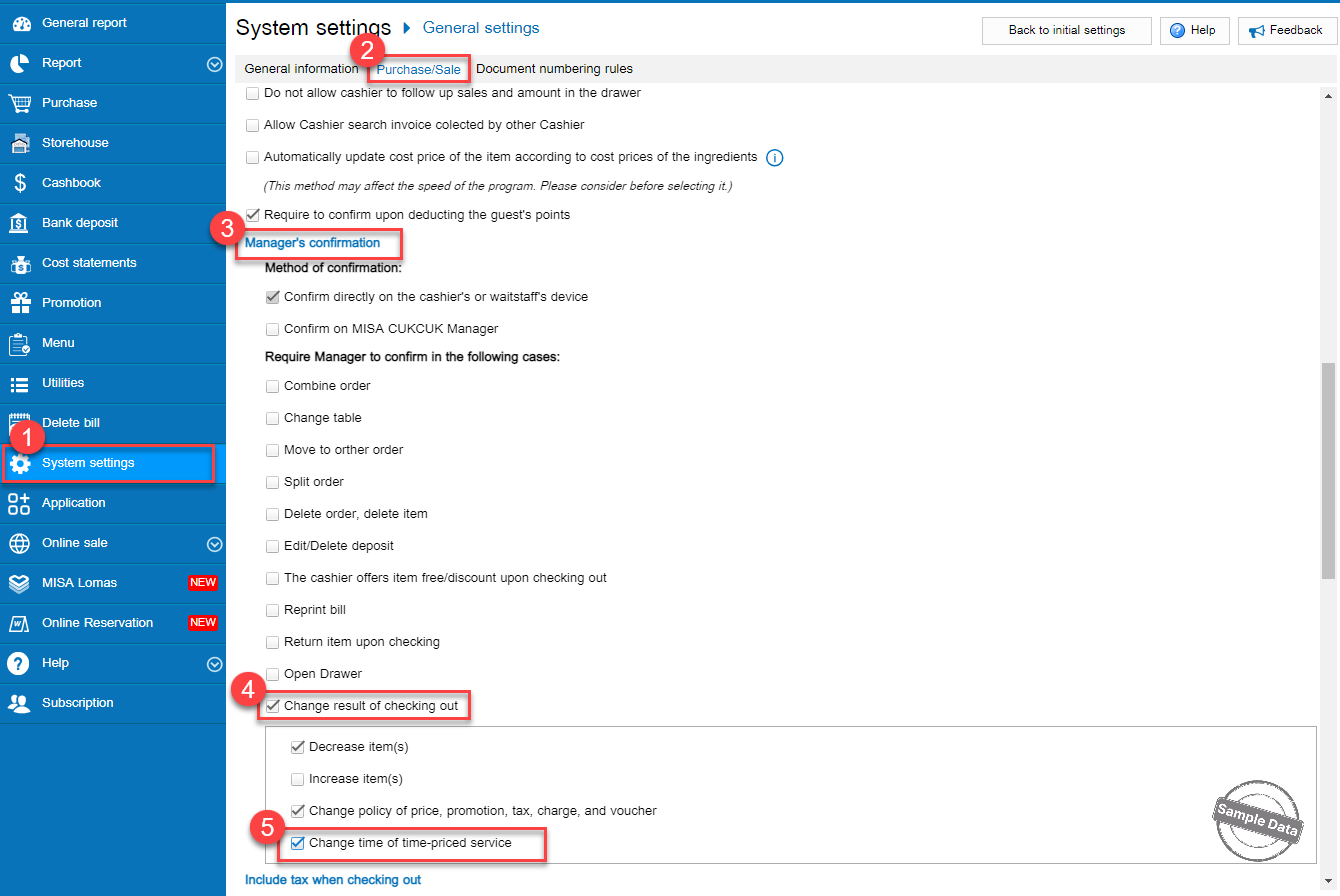
- Go to System settings/General settings. Select Purchase/Sale tab
- Click Edit on Sale part. Scroll down to Manager’s confirmation.
- Check Change result of checking out and then tick Change time of time-priced service
- Click Save
1. The waitstaff takes order as usual, select time-priced service.
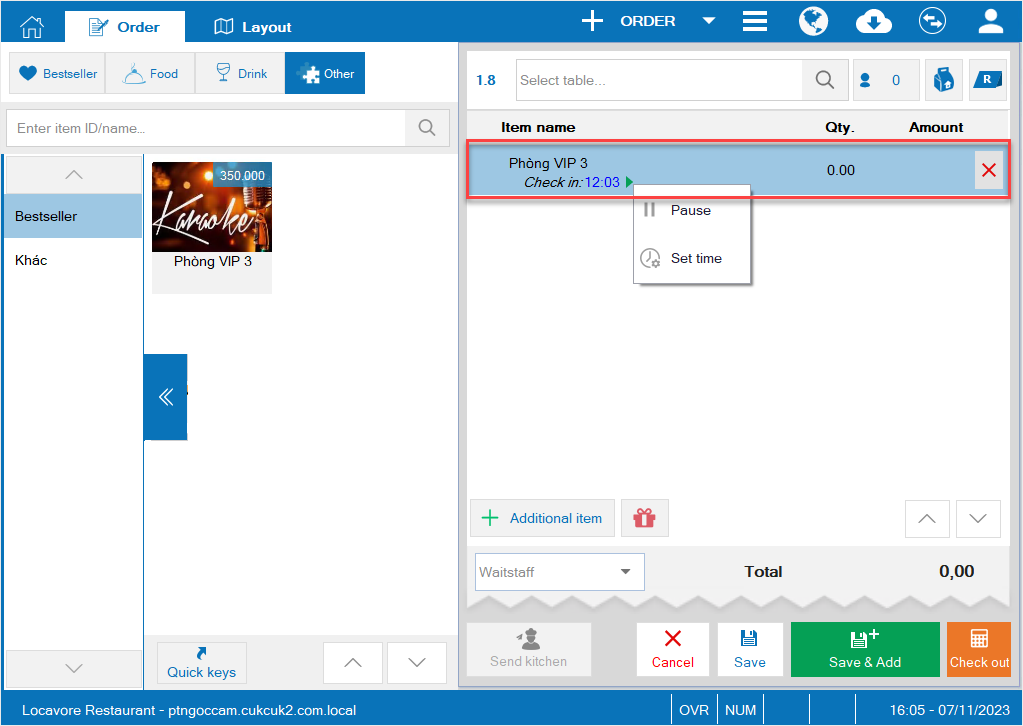
2. Click on Set time to enter the time the guest checks in
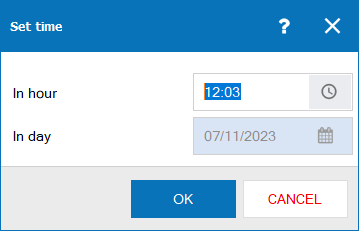
- Upon checking out, if there’s any discrepancy, the cashier can Adjust time.
Case 1: Do not require the manager to confirm if there’s any change in the time-priced service
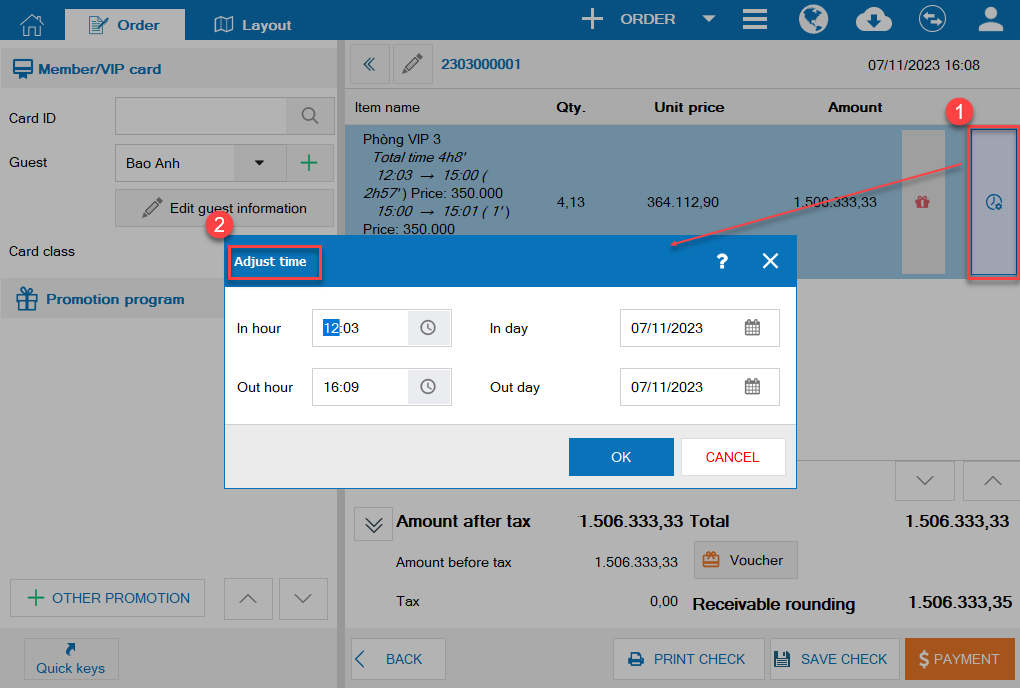
Case 2: Require the manager to confirm if there’s any change in the time-priced service
Upon checking out, if there’s any discrepancy, the cashier adjusts time to the actual time.
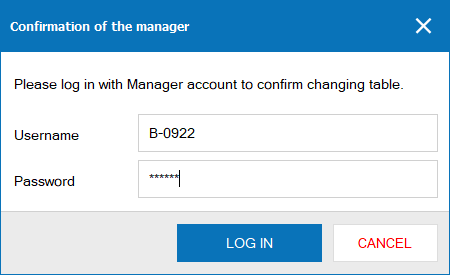
Upon clicking Payment, the manager needs to confirm in order to complete the order.
Have a nice day!
