
I. Purpose
Help cashiers select a label printer, customize label templates, and test printing before attaching labels to products.
Labels can display product information using the restaurant’s preferred label size, font, and content.
II. Instruction Steps
1. Select a Label Printer
- On the POS, open Settings.
- Select Printer and template.
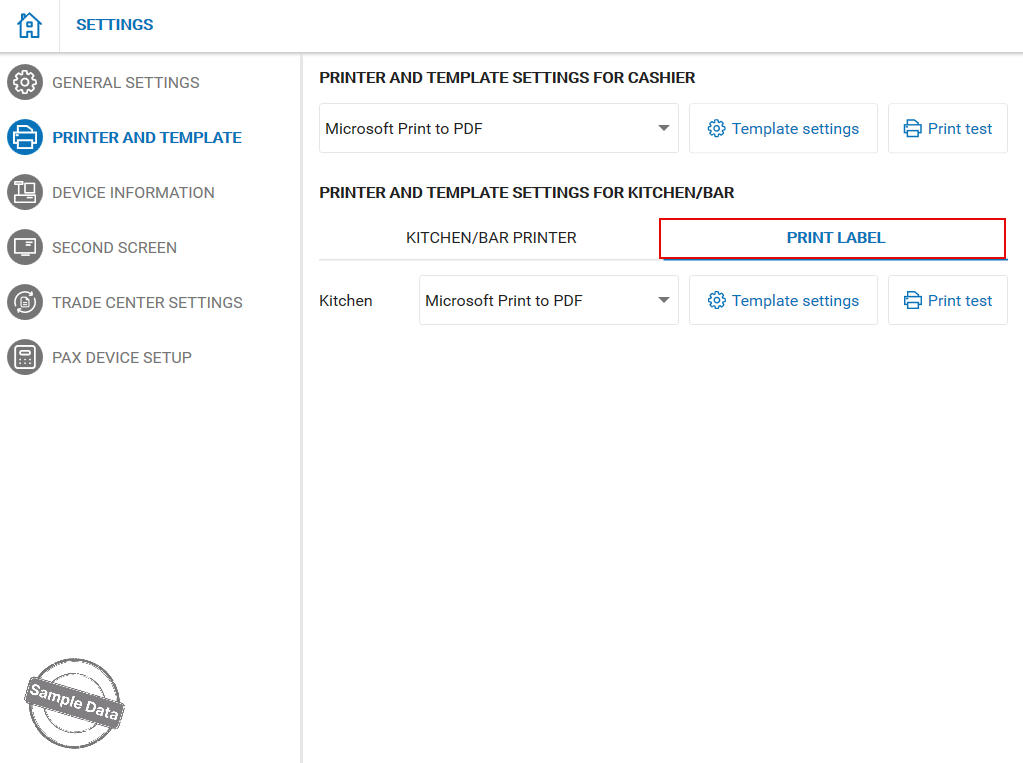
- Under Printer and template settings for Kitchen/Bar, open the Print Label tab.
- Select the label printer from the dropdown next to the relevant preparation area.
2. Customize the Label Template
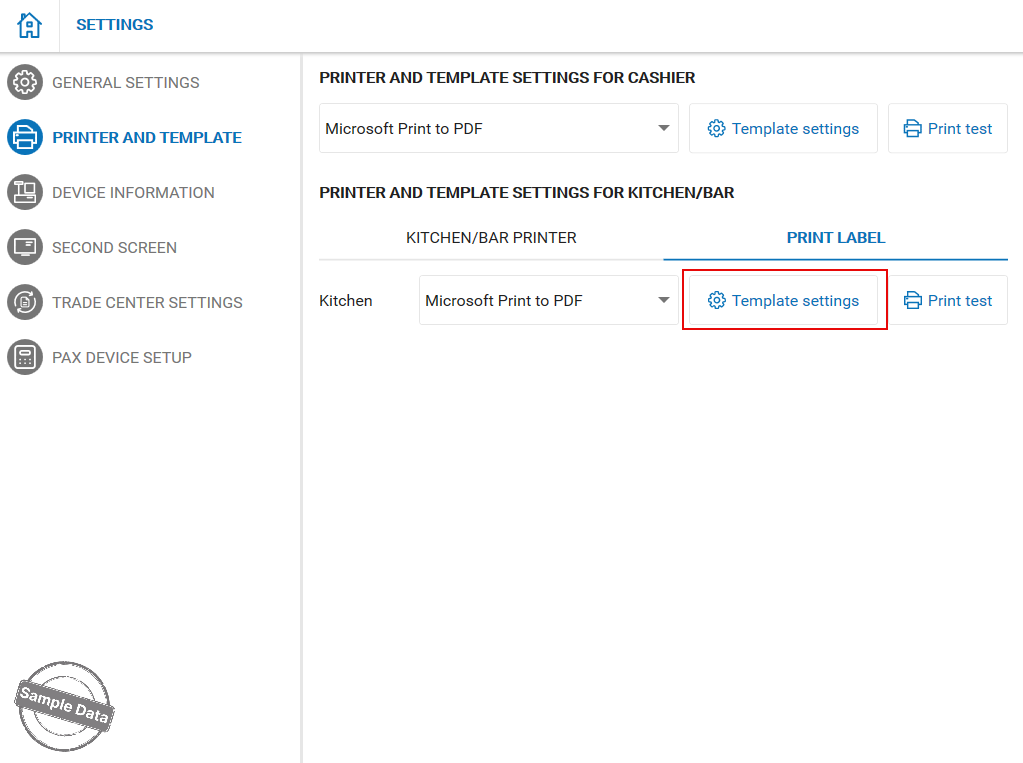
- On the Print Label tab, click Template settings next to the selected printer.
- Configure the template’s general information, including:
- Label size
- Font
- Information displayed on the label
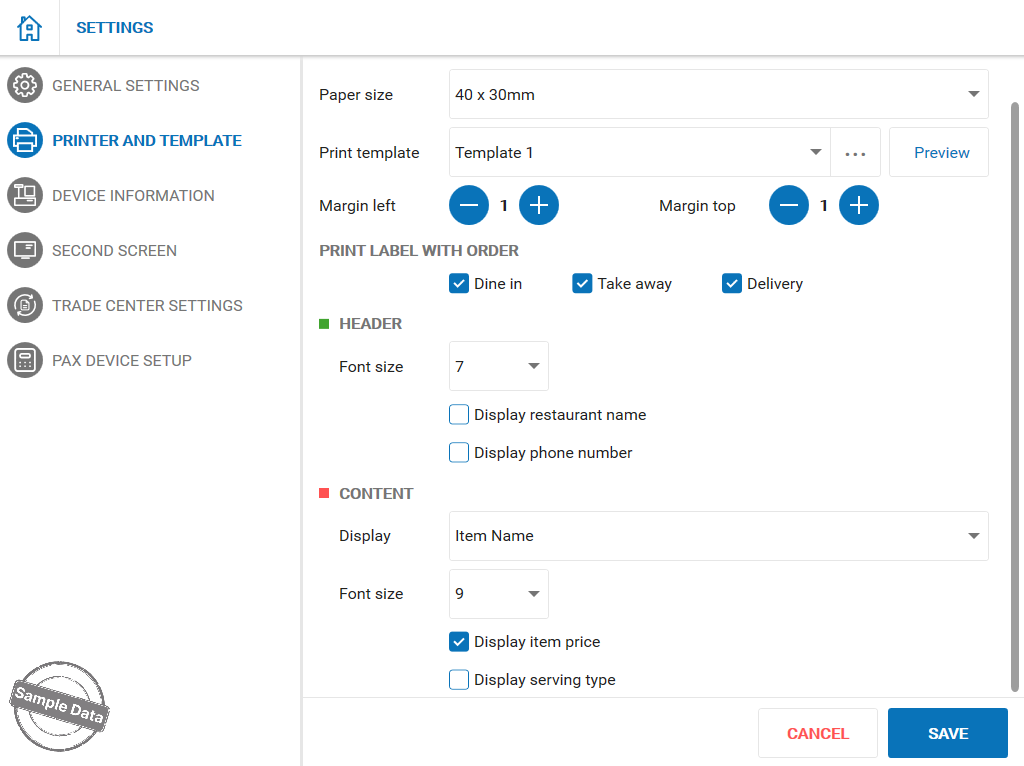
- Save the template settings.
3. Print a Test Label
- Click Print test next to Template settings.
- Check the printed label to ensure the size, font, and displayed information are appropriate.
- Adjust the template settings and print another test if needed.
Notes:
- Select None if you do not want to print labels for the preparation area.
- Configure label printing in the Print Label tab, rather than the Kitchen/Bar Printer tab.
Have a nice day!
